Collecting Reviews on EchoBrain: A Guide for Fourthwall Merchants
EchoBrain makes it simple to collect and display customer reviews on your Fourthwall store. Follow this guide to understand how reviews are collected and how you can customize settings to fit your brand.
1. How EchoBrain Collects Reviews
Unverified Reviews
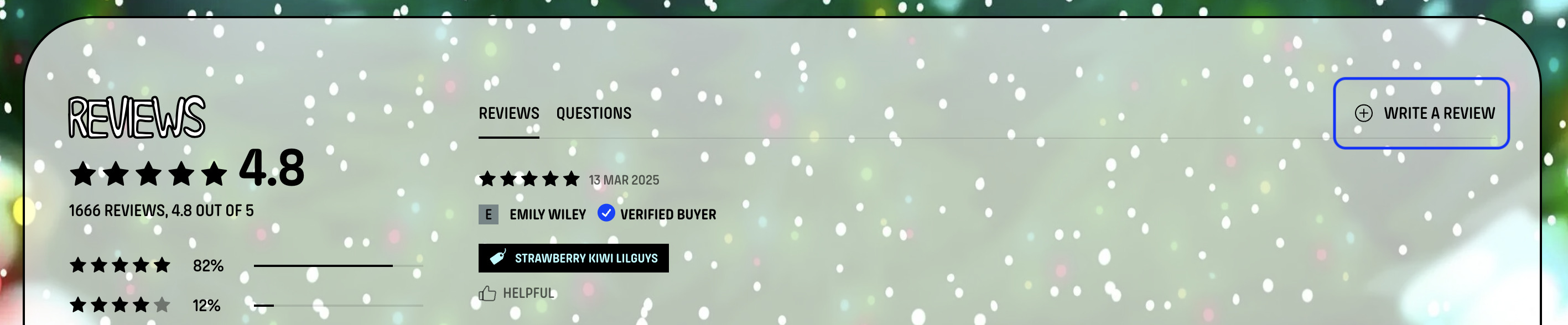
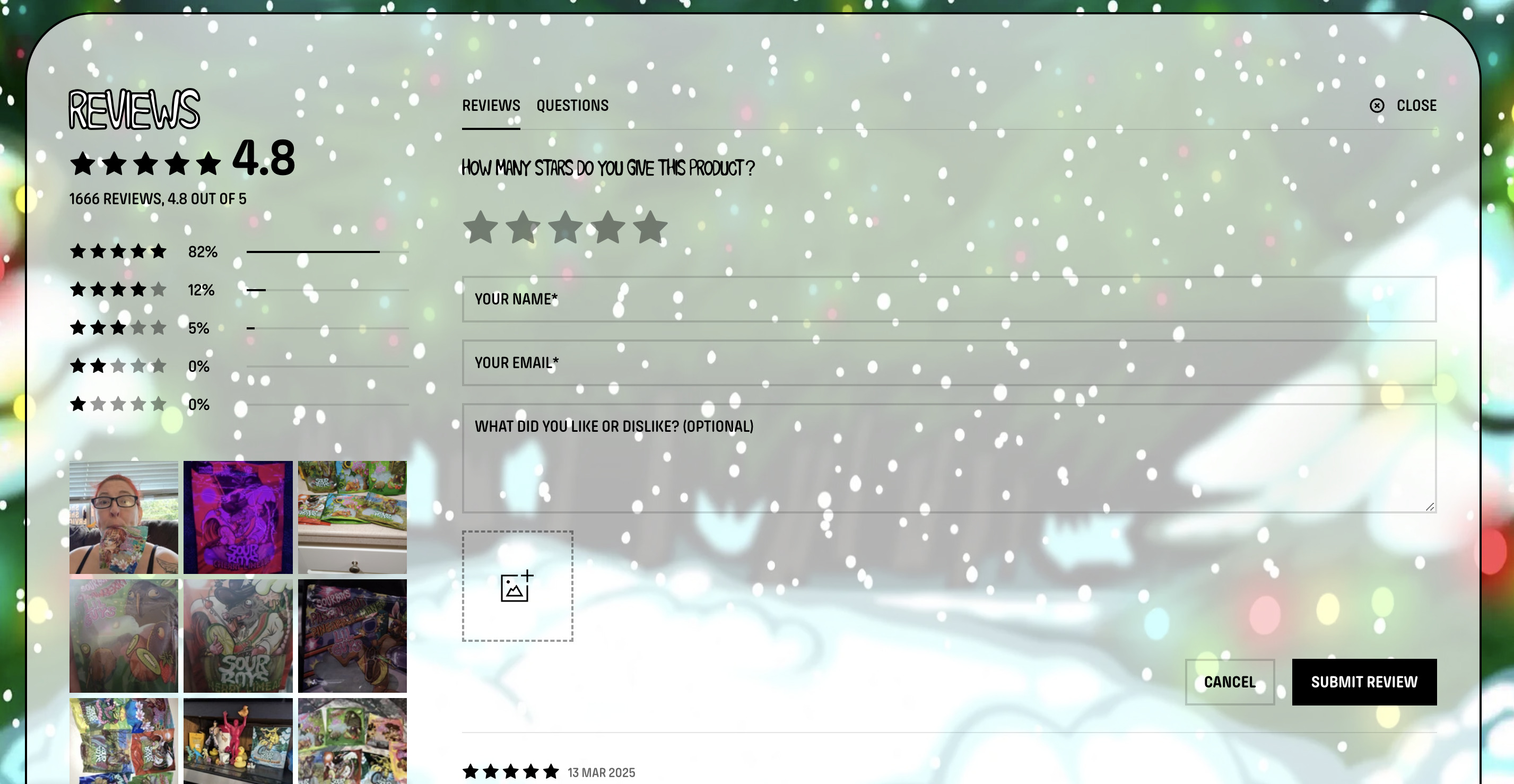
These reviews come from the Product Review or General Review widget displayed on different pages of your store, as well as reviews you add manually or import. Since anyone can submit a review through the widgets, EchoBrain does not verify whether the reviewer actually purchased the product, and these reviews show no verification label.
Verified Reviews
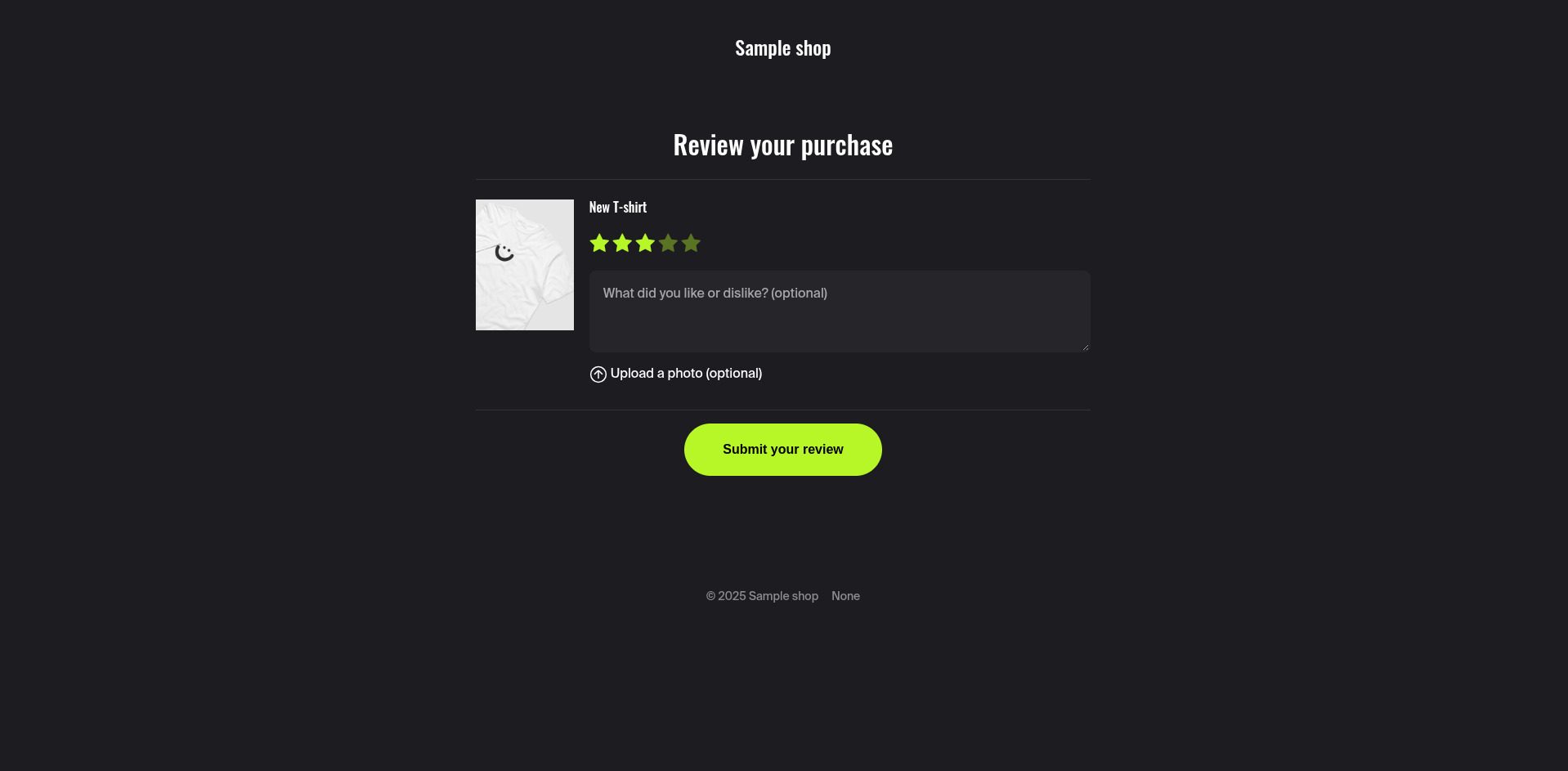
These reviews come from the order link in the review request emails EchoBrain sends to customers a set number of days after the order date (default: 15 days). Since EchoBrain gets notified about each purchase, we can verify that these customers actually bought the product they are reviewing. This is the only way a review receives the verified status, and it is assigned automatically — it can’t be set by hand.
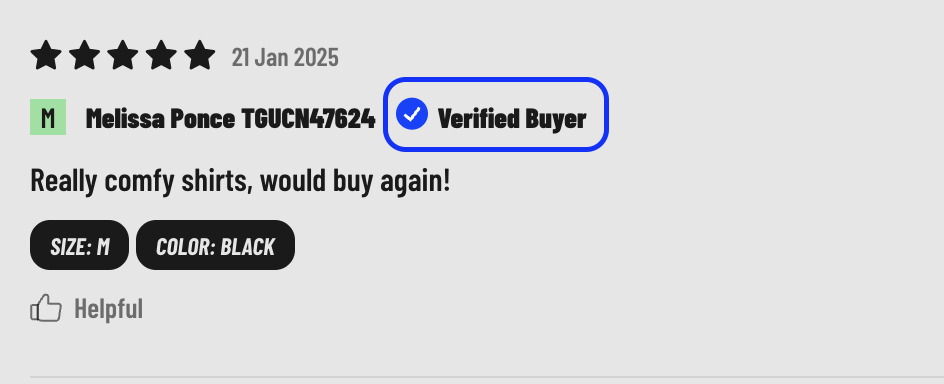
Verified reviews, once published by the merchant or someone on the merchant’s team, will display a “Verified Buyer” badge.
Verified by Store Reviews
Reviews that you marked as verified manually before this change are not linked to an order, so they now display a “Verified by store” label instead of the “Verified Buyer” badge. They are not deleted or hidden, and they still count toward your ratings. You can choose whether your shop shows this label from Reviews → Review Settings → Publishing and Moderation — see Managing your reviews for details.
Key Difference: “Verified Buyer” reviews come from real orders, “Verified by store” reviews are vouched for by you, and unverified reviews can be submitted by anyone.
2. EchoBrain Works Automatically
Once EchoBrain is integrated with your Fourthwall shop, it immediately starts sending review request emails to customers who have made a purchase—no additional setup is required.
However, you can fine-tune your review collection process by customizing various settings within EchoBrain.
3. Customizing Review Collection Settings
All of these settings live under Reviews → Review Settings, split across several tabs.
Request Scheduling
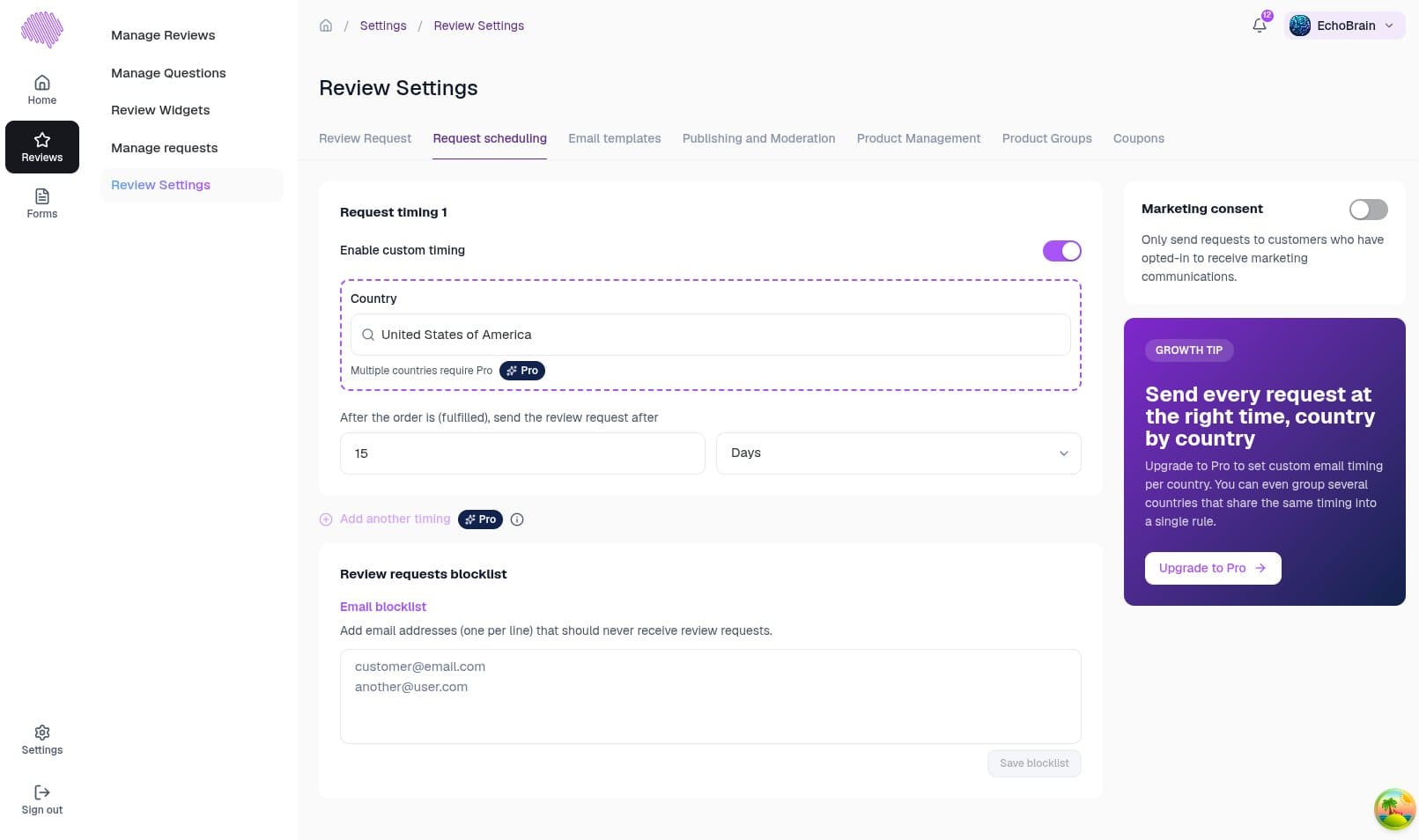
- Set up “Request timing” rules, each tied to a Country. Every rule sends the review request a number of minutes, hours, or days after the order is placed — for example, send the review request after 15 Days for United States orders. The delay is always counted from the order date (when the order was created), not from when it’s fulfilled or delivered.
- Use the Enable custom timing switch at the top of each rule to turn it on or off. Disabled rules appear dimmed and don’t generate requests, and changes are saved instantly — there’s no Save button. If you turn off every rule, no review requests are sent, and the dashboard warns you with a red message: “Without an active timing rule, no review requests will be sent.”
- The Country selector lists every country and has a search box, so you can just start typing a name. Countries already used by another rule are hidden to avoid duplicates, and you can navigate with the keyboard (arrow keys, Enter to select, Escape to close).
- The last remaining rule can’t be deleted, so you always have a timing in place.
- A Review requests blocklist lets you paste email addresses (one per line) that should never receive a review request.
- A Marketing consent toggle lets you restrict requests to only customers who’ve opted in to marketing communications. Below it, an info card shows a tip based on your plan.
Standard plan: you get one rule with one country. Under the country you’ll see the hint “Multiple countries require Pro”, and “Add another timing” is disabled with a Pro badge (hover to see “Upgrade to Pro to add more timings”). The purple Growth Tip card, “Send every request at the right time, country by country”, includes an Upgrade to Pro button.
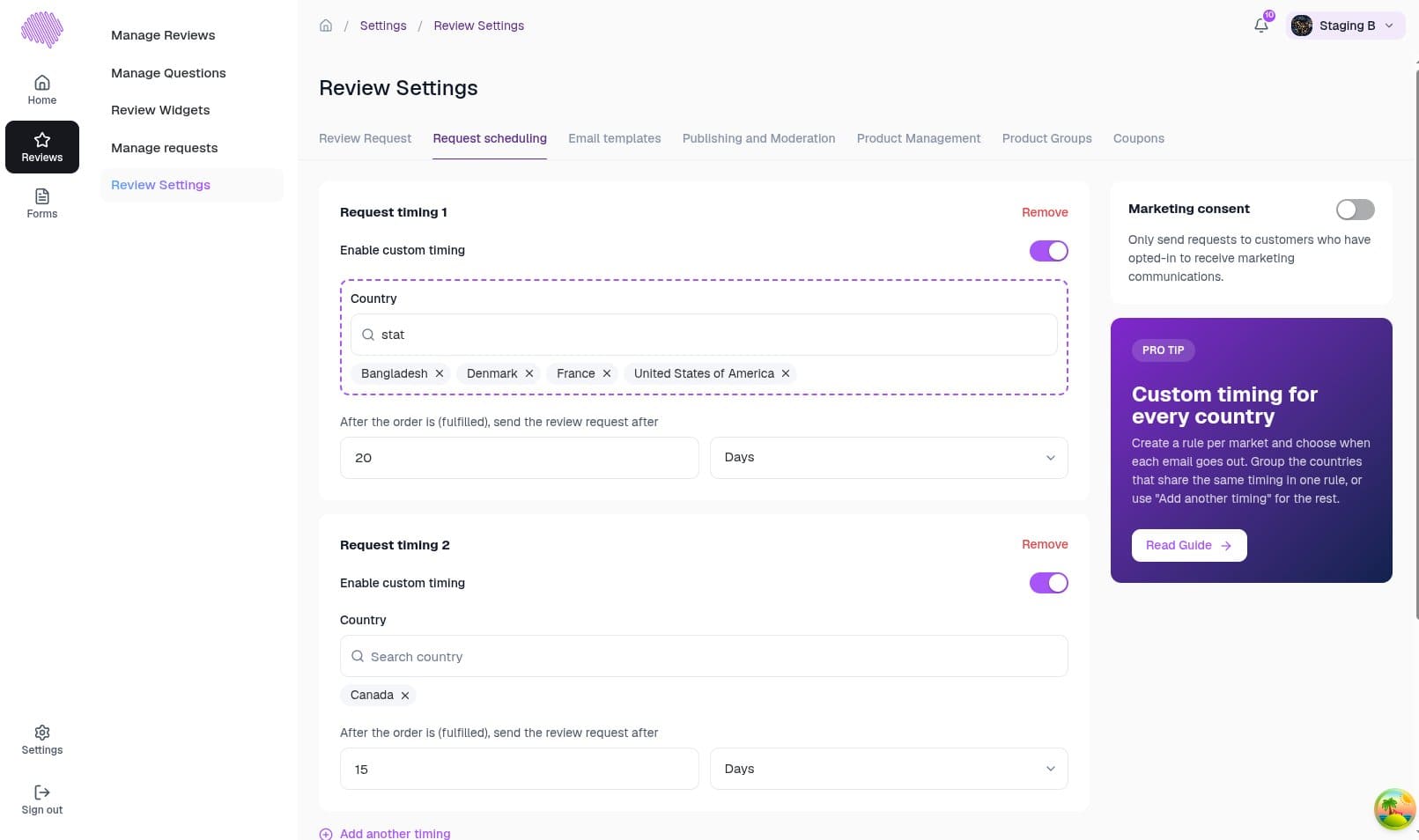
Pro plan: you can create as many rules as you need, and each rule can include multiple countries. Selected countries appear as chips with an X to remove them, so countries that share the same timing can live in a single rule. “Add another timing” is enabled for the rest of your markets, and the purple Pro Tip card, “Custom timing for every country”, links to the guide with a Read Guide button.
GENERAL timing
A rule labeled GENERAL applies to orders from any country that doesn’t have its own timing. New stores start with a GENERAL timing of 15 days, already turned on. Pro users can add one with “Create GENERAL timing”; changing or removing it asks for confirmation first.
How EchoBrain picks the timing for an order
EchoBrain looks at the order’s country (shipping address, then billing address, then the customer’s profile) and uses the first match:
- An active rule for that country.
- Otherwise, your active GENERAL timing (default: 15 days).
- Otherwise, a built-in default of 20 days. The dashboard reminds you: “Orders from countries without a timing will be sent after 20 days by default. Create a GENERAL timing to control this.”
The 20-day default only applies when your store has no rules at all, or has at least one active rule but none for that order’s country. If your store has rules but all of them are turned off, EchoBrain treats that as a decision to pause requests: the order is marked Skipped and no email is sent.
Email Templates
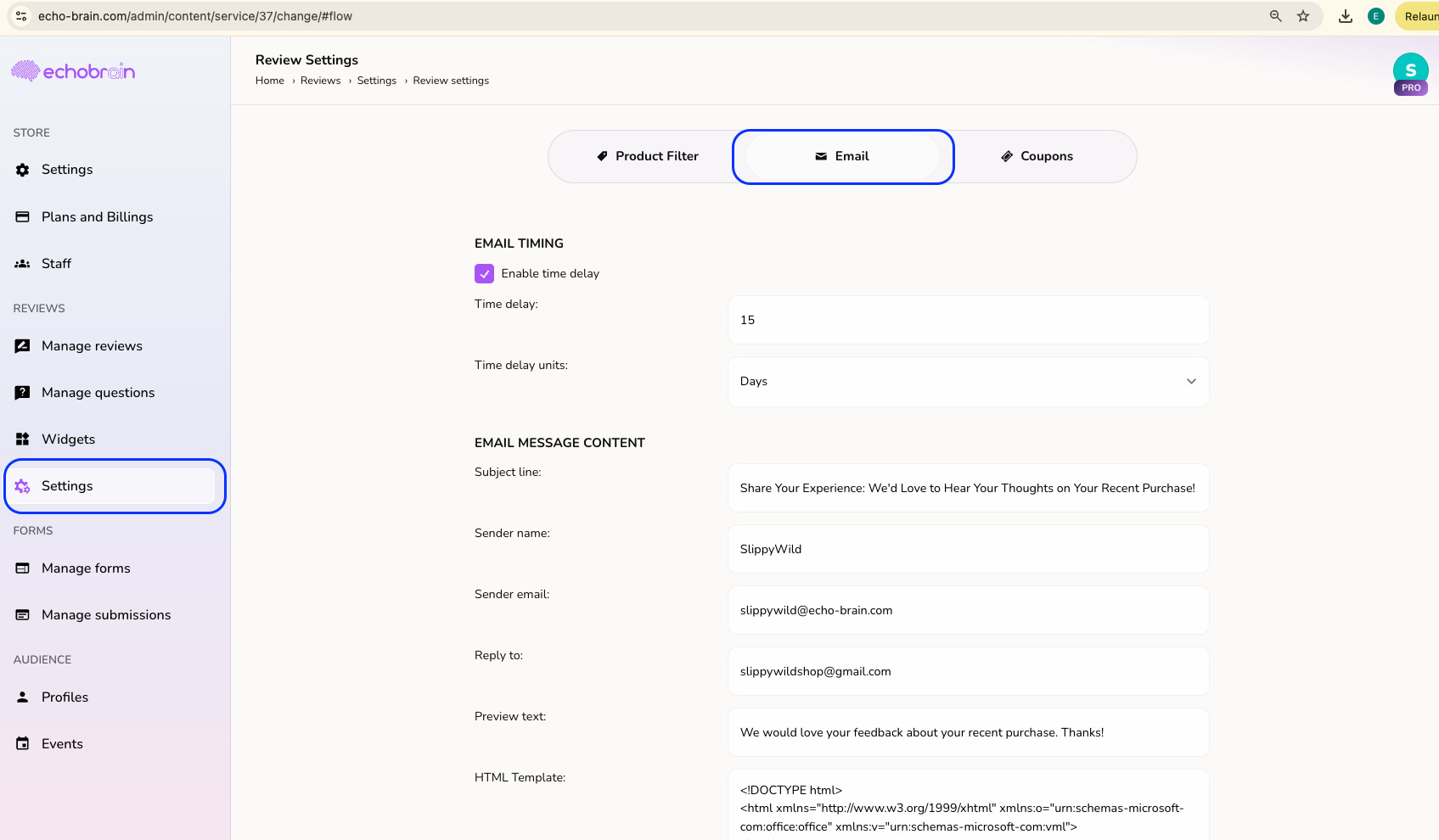
- Edit the Subject line, Sender name, Reply to address, and Preview text to match your brand’s tone and style.
- Sender email is shown but grayed out — it’s tied to your sending domain and can’t be changed.
- The Email template (HTML) itself is a fixed, ready-made design you can preview but not edit directly.
Product Management
- A table listing your products, each with a toggle to turn review requests Active or Inactive for that product.
- Select multiple products and use “Turn off review requests” to disable them in bulk.
- Need to manage requests for many products at once? The separate Product Groups tab (a Pro feature) lets you organize products into groups — see our dedicated guide for how to set one up.
Coupons (Encourage More Reviews!)
This tab is exclusively available to users in the PRO plan.
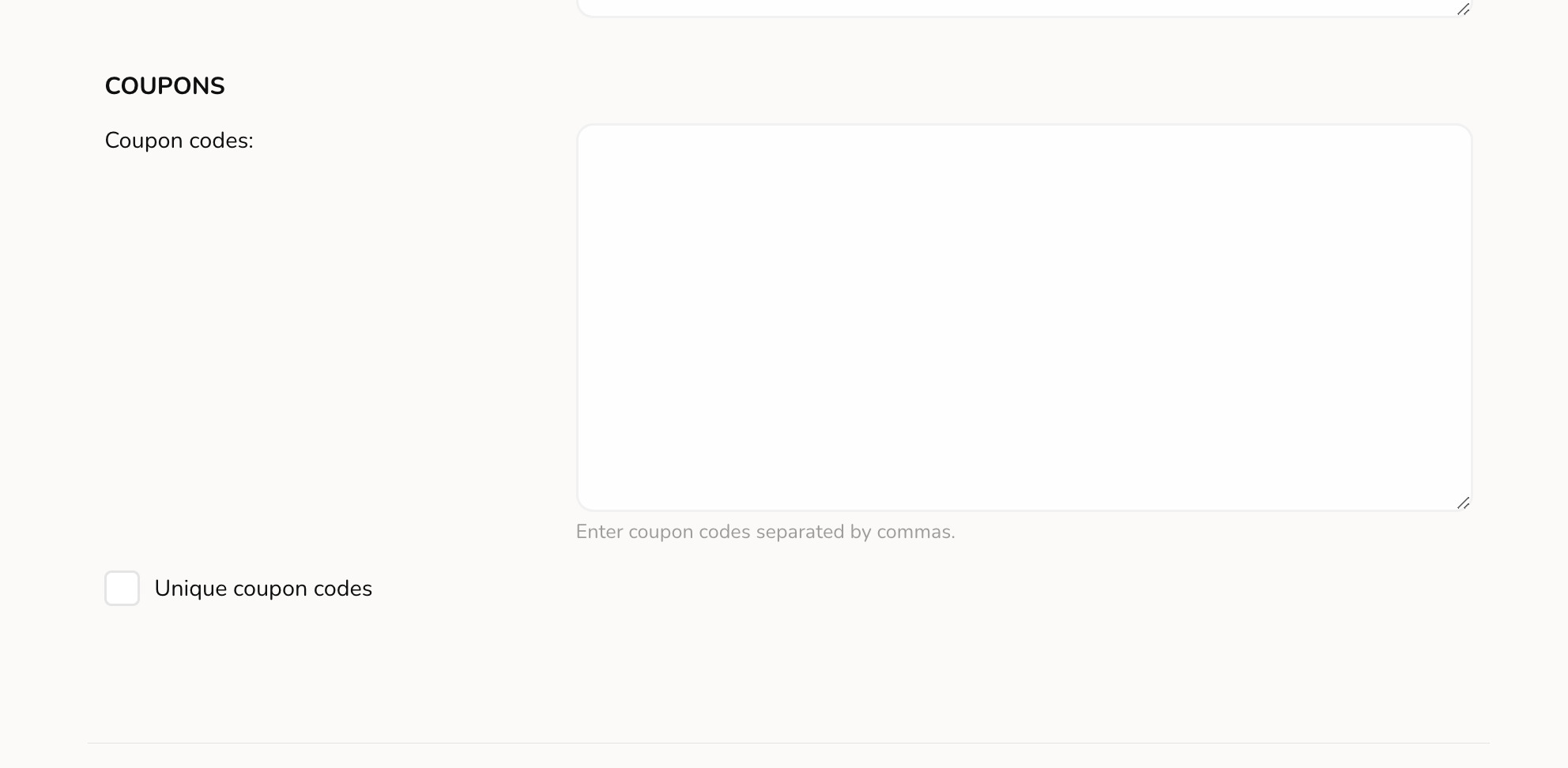
- Turn on the Automatic Coupon toggle to offer a discount code to customers who submit a verified review.
- Enable Fourthwall Promotion to automatically pull valid discount codes from a promotion you’ve set up in your Fourthwall shop admin, instead of managing a list yourself.
- Set a Discount label (the text shown to the customer) and a Static Backup Code to fall back on if you run out of unique codes.
- A Low stock alert lets EchoBrain warn you when your available codes are running low.
How to add reviews manually?
Method 1
While you wait for your customers to submit reviews for your products, you may want to import reviews that you may have gotten in the past into EchoBrain, in order for you to be able to display those reviews on your Fourthwall shop as well. If those reviews are a bunch, you can automatically import the reviews by following this guide. However, if they are only a couple, you can also add those reviews manually.
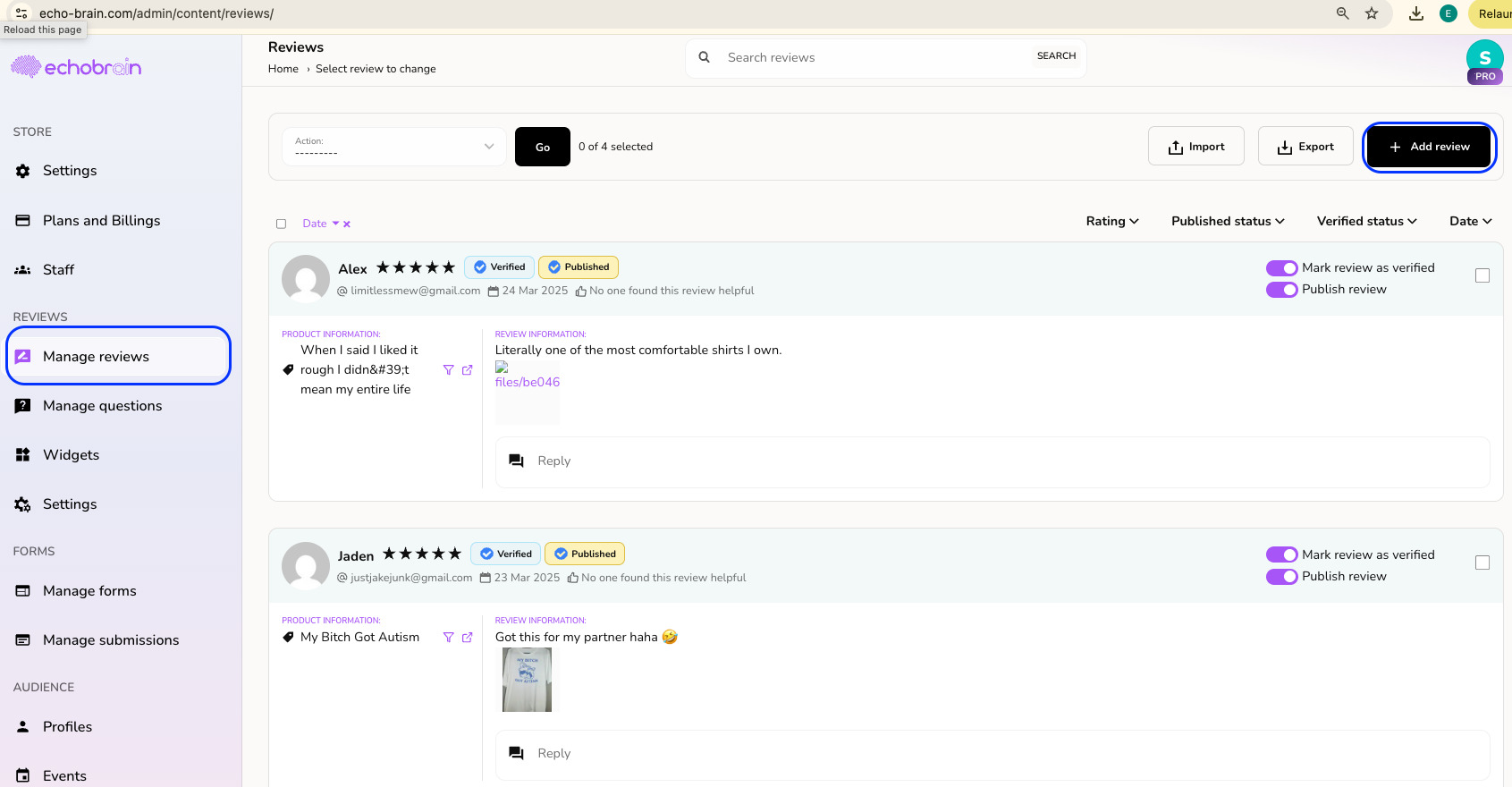
Go to your EchoBrain dashboard and click on “Manage Reviews” under “Reviews”. Then, click on the “Add Review” button on the top right corner.
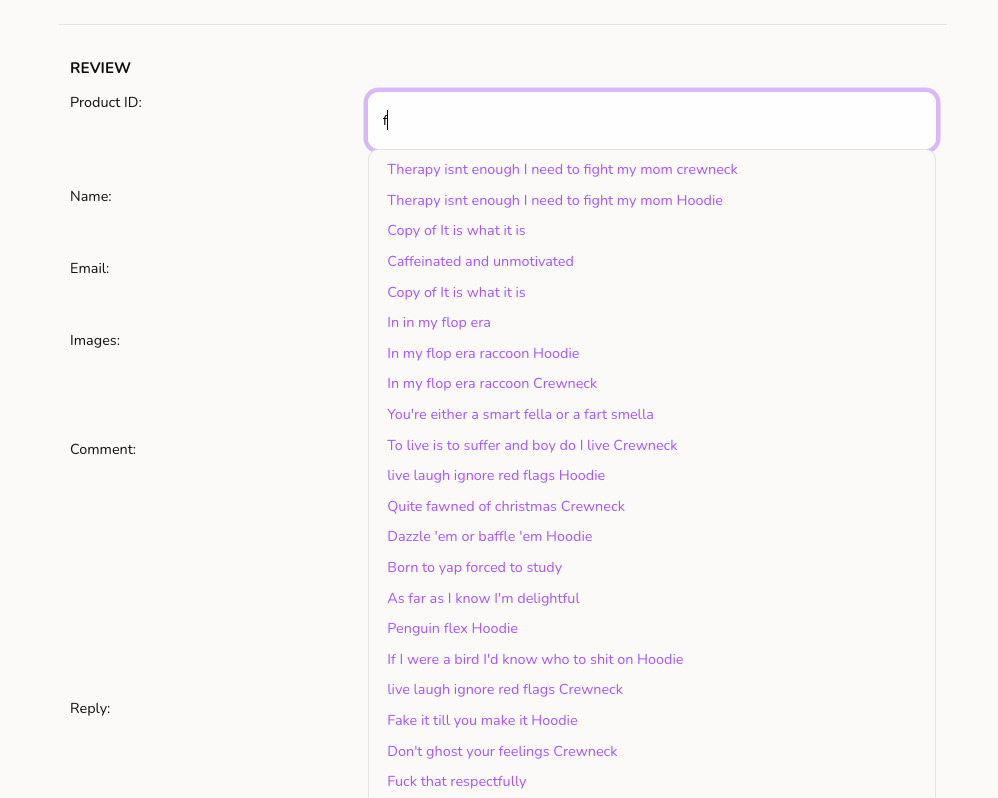
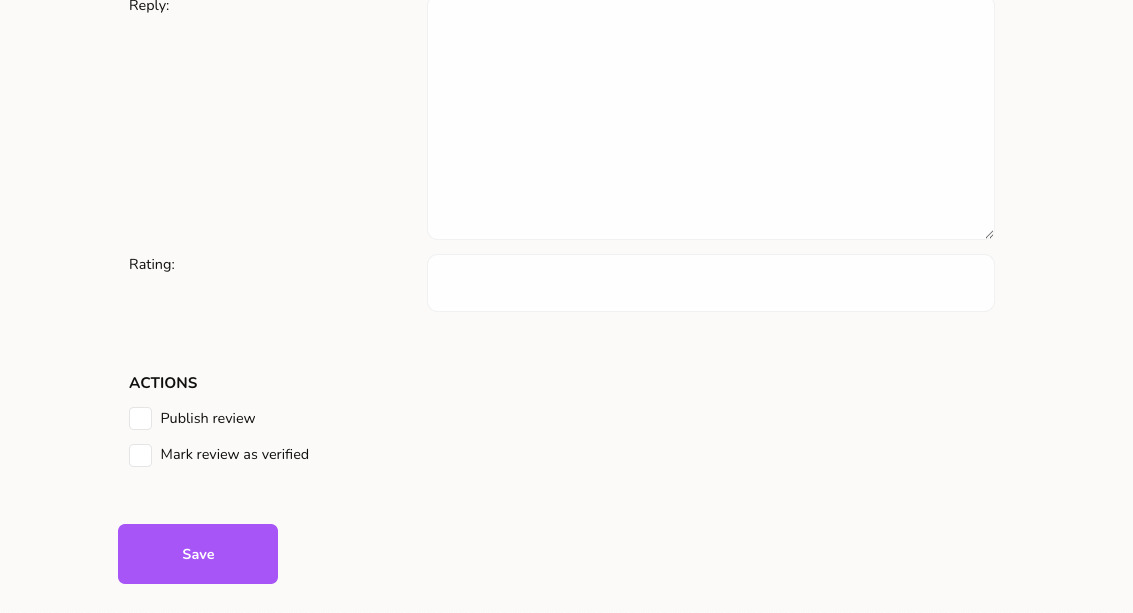
Then, on the form that shows up, enter the details of the review you want to create, and click the “Save Review” button:
-
Product: Start typing the name of the product you want to create the review for and pick it from the search results, or select “General (no specific product)” to create a review without a reference to any product — this will only show up on the General Review Widget
-
Rating: The rating of the review (A value between 0 and 5 stars)
-
Comment: The content of the review itself
-
Merchant’s Reply: Fill this field if you would like to reply to the review
-
Author name: The name of the person who submitted the review
-
Author email: The email of the person who submitted the review
-
Customer Media: Drag and drop images or a video (high-res JPG, PNG, or MP4, up to 50MB) submitted along with the review
-
“Publish review” toggle: Turn this on if you want the review to be published right away
Reviews created manually are not verified. The verified status can’t be set manually: it is assigned automatically only when a review comes from a real order, through the order link in a review request email.
Method 2
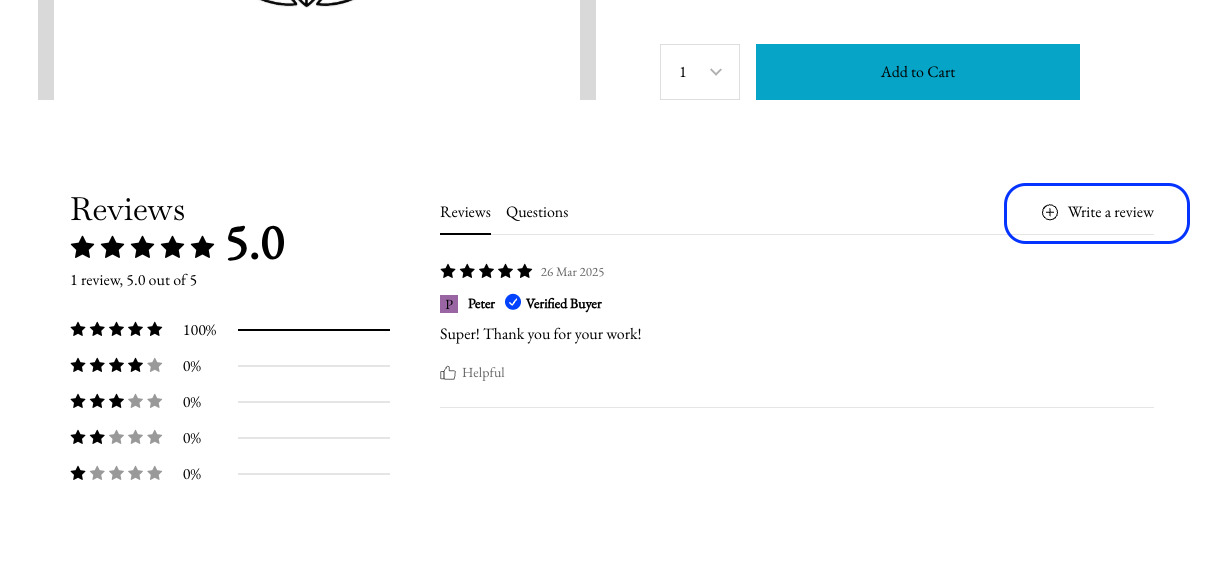
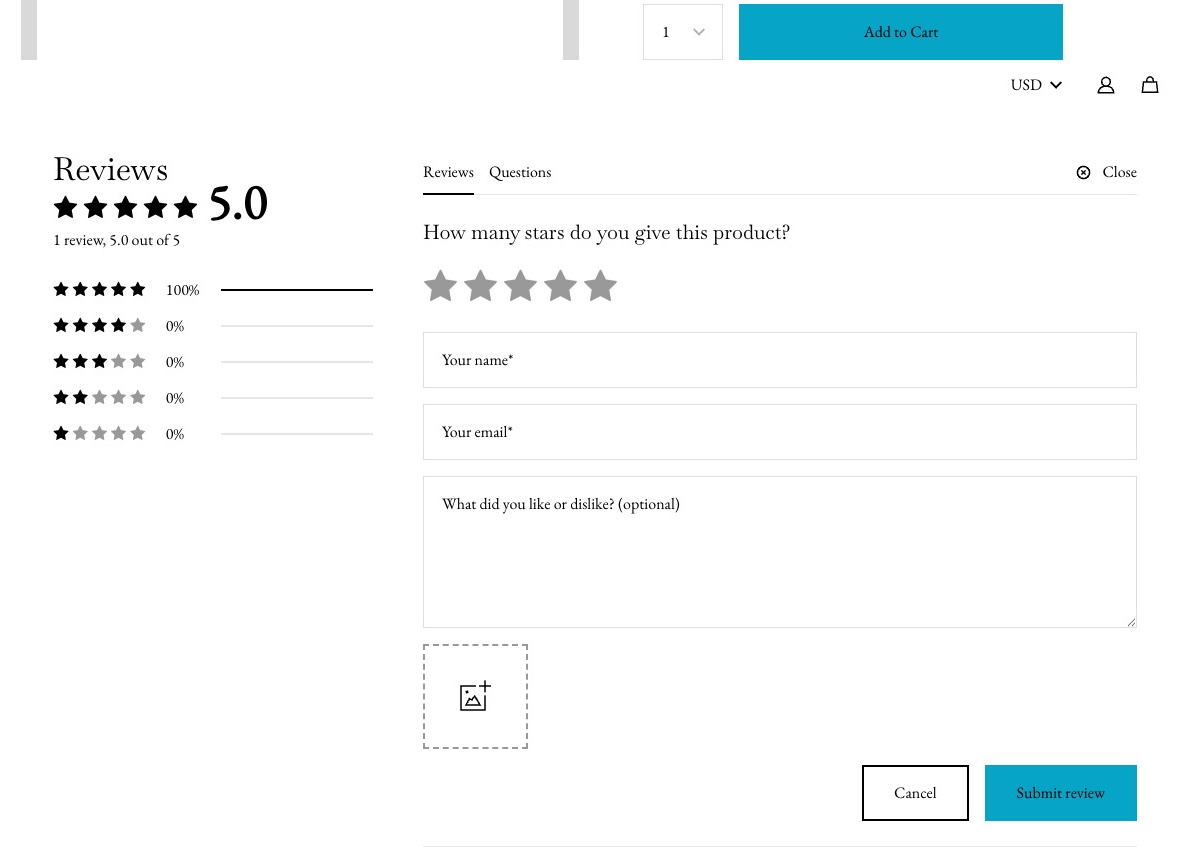
Another way in which you can add your first reviews manually is from the actual review widgets that show up on your shop. For example, if you have gone through the process of setting up and displaying your review widgets on your site, by following this guide, you can go to your site where your widgets are displaying, and click on “Write a review” to enter the information from the review that you would like to manually add. Then, you can go into your EchoBrain dashboard and publish it as explained here.
Final Thoughts
EchoBrain makes it simple for Fourthwall merchants to collect and display powerful customer reviews. Whether you rely on unverified reviews from your store’s widgets or verified reviews from the order link in purchase-based email requests, reviews help drive credibility and boost conversions.
Set up your review collection strategy today and start leveraging customer feedback to grow your business!