EchoBrain reviews in your Fourthwall shop: Quick Start Guide
EchoBrain makes it simple to collect and display customer reviews on your Fourthwall shop. Follow these steps to display EchoBrain reviews into your store’s design once you have completed the EchoBrain-Fourthwall integration
Step 1: Add the EchoBrain Script to Your Site
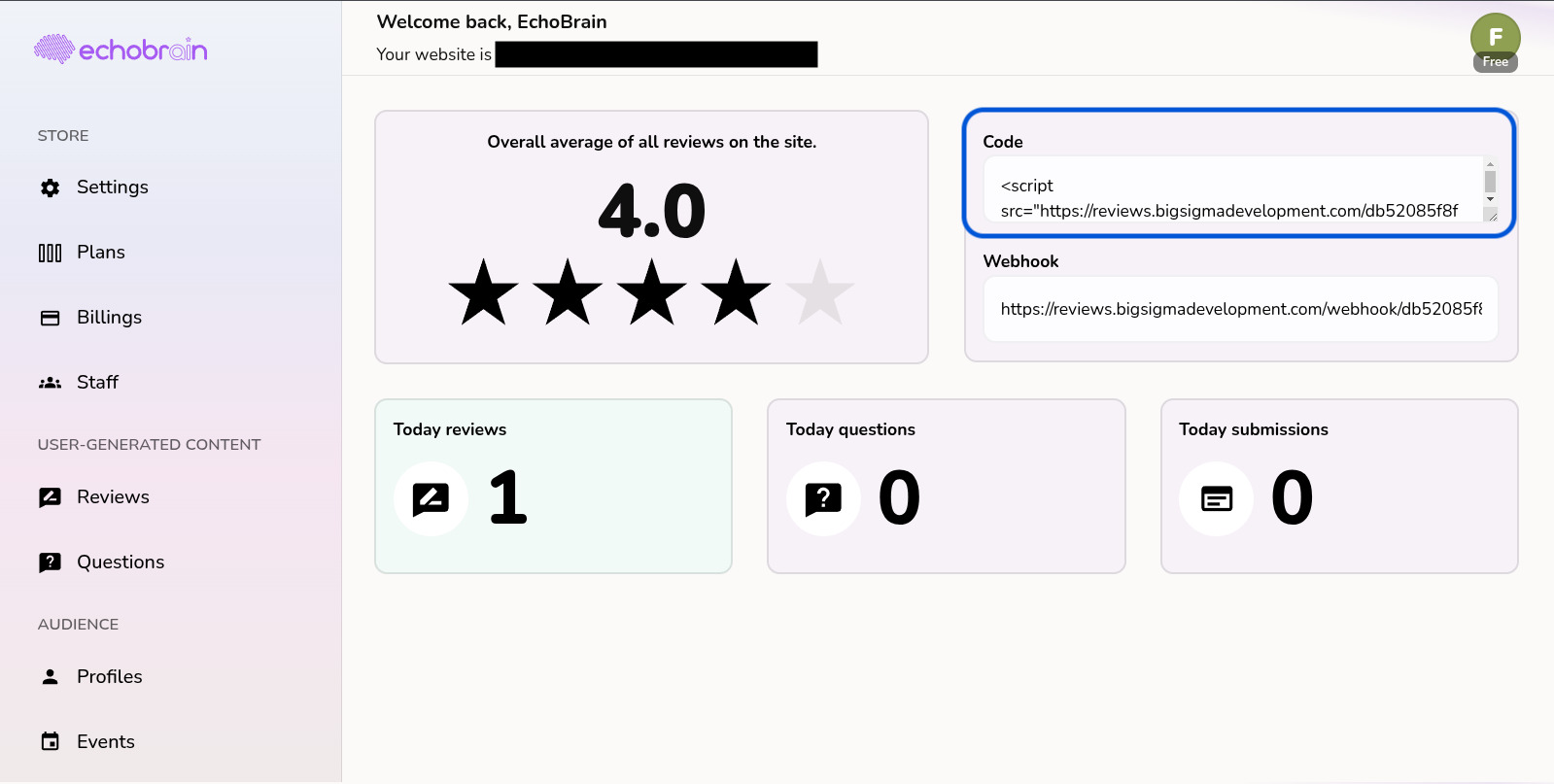
Log in to your EchoBrain dashboard — right on the Home page, you’ll find the “EchoBrain Integration Steps” card, with an Automatic and a Manual tab. The manual path looks like this:
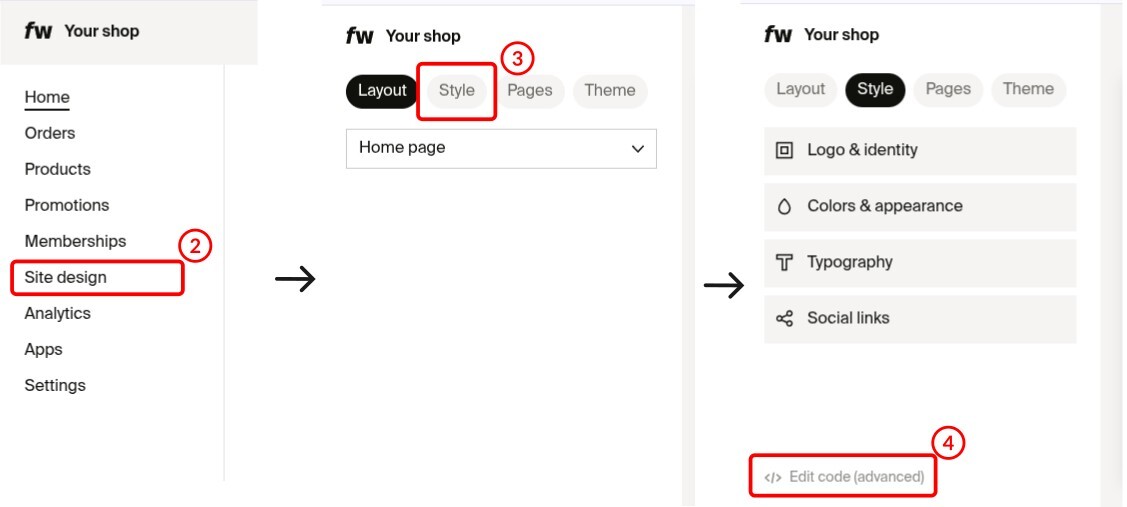
- Log in to your Fourthwall shop admin.
- Click Site design.
- Click Style.
- Click Edit HTML code.
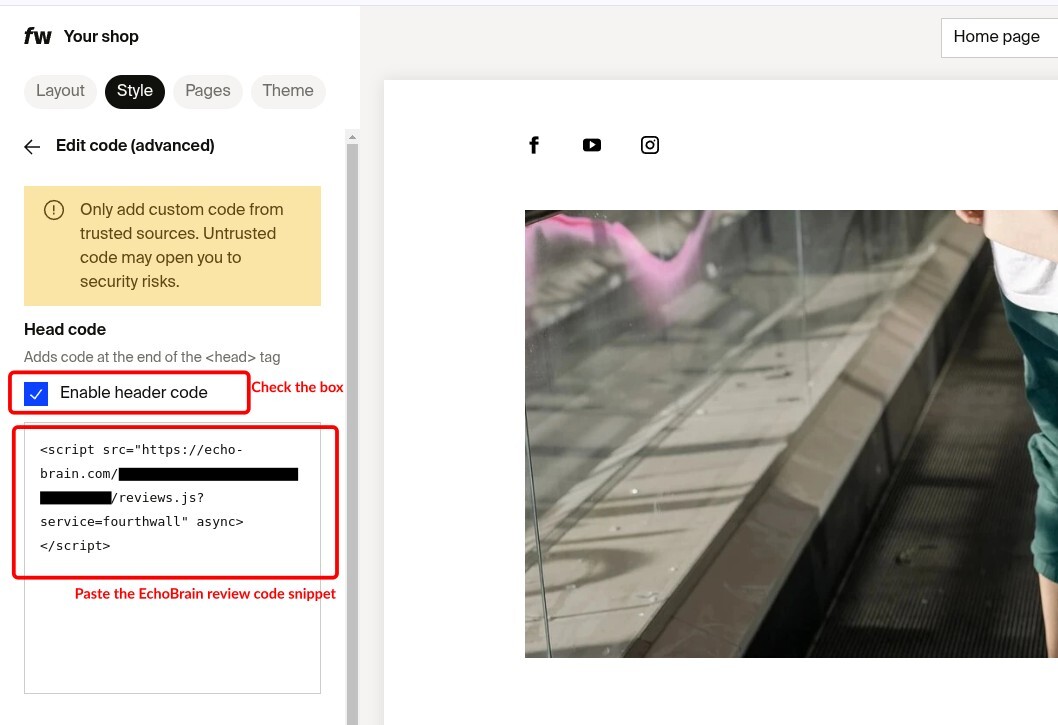
- Check the box labeled “Enable header code”.
- Back on your EchoBrain Home page, click Copy code next to the Code box, then paste it into the header code field on Fourthwall.
Step 2: Learn about the different EchoBrain review widgets
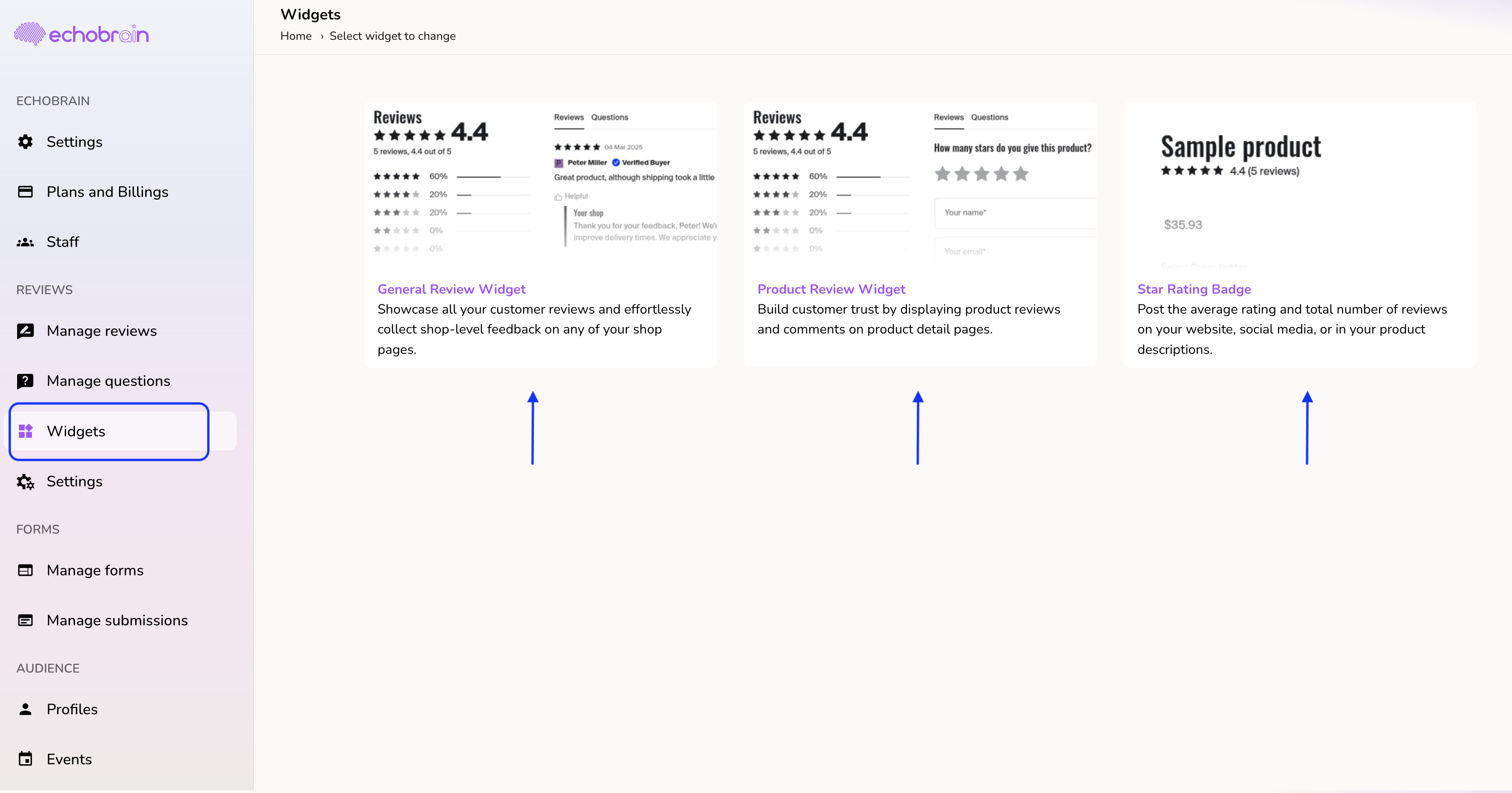
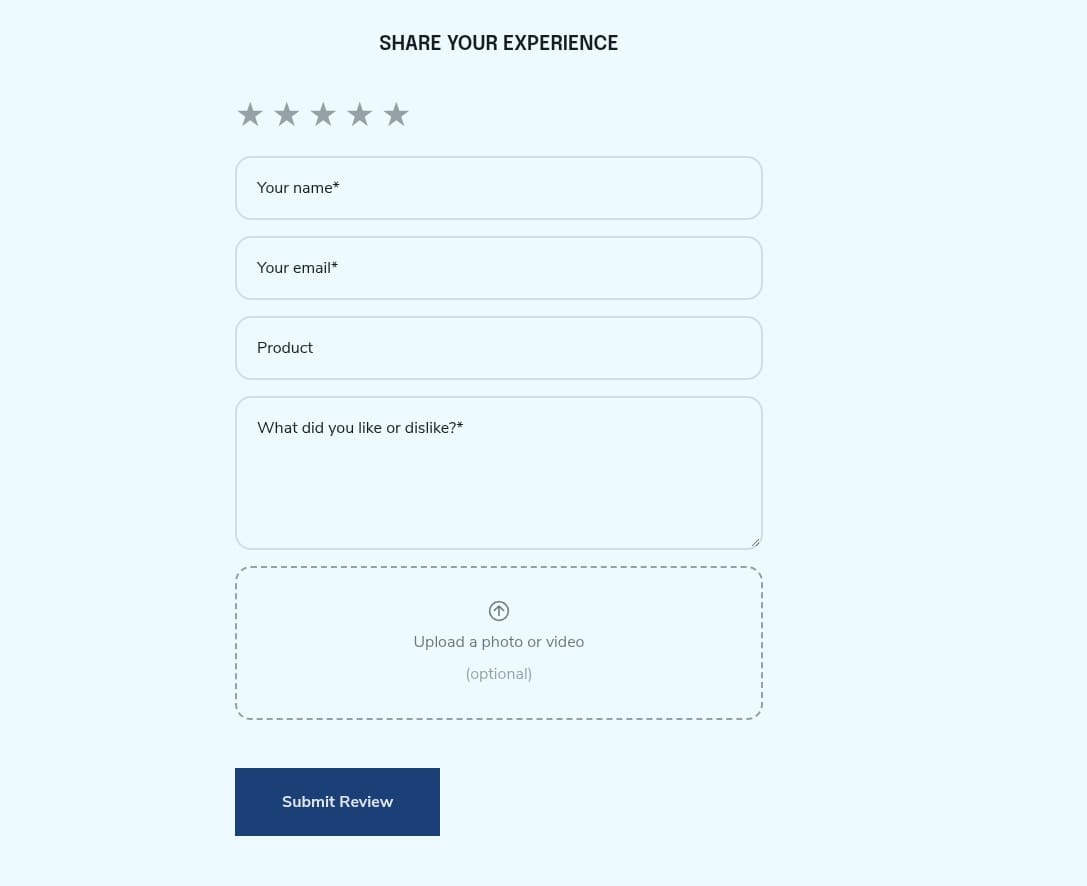
In EchoBrain, you can currently show 5 types of widgets, found under Reviews → Review Widgets: Product Review widget, Star Rating badge, General Review widget, Product Card Rating Badge, and the newer Review Form widget (an embeddable form that lets customers submit a review right from your site)
Product Card Rating Badge:
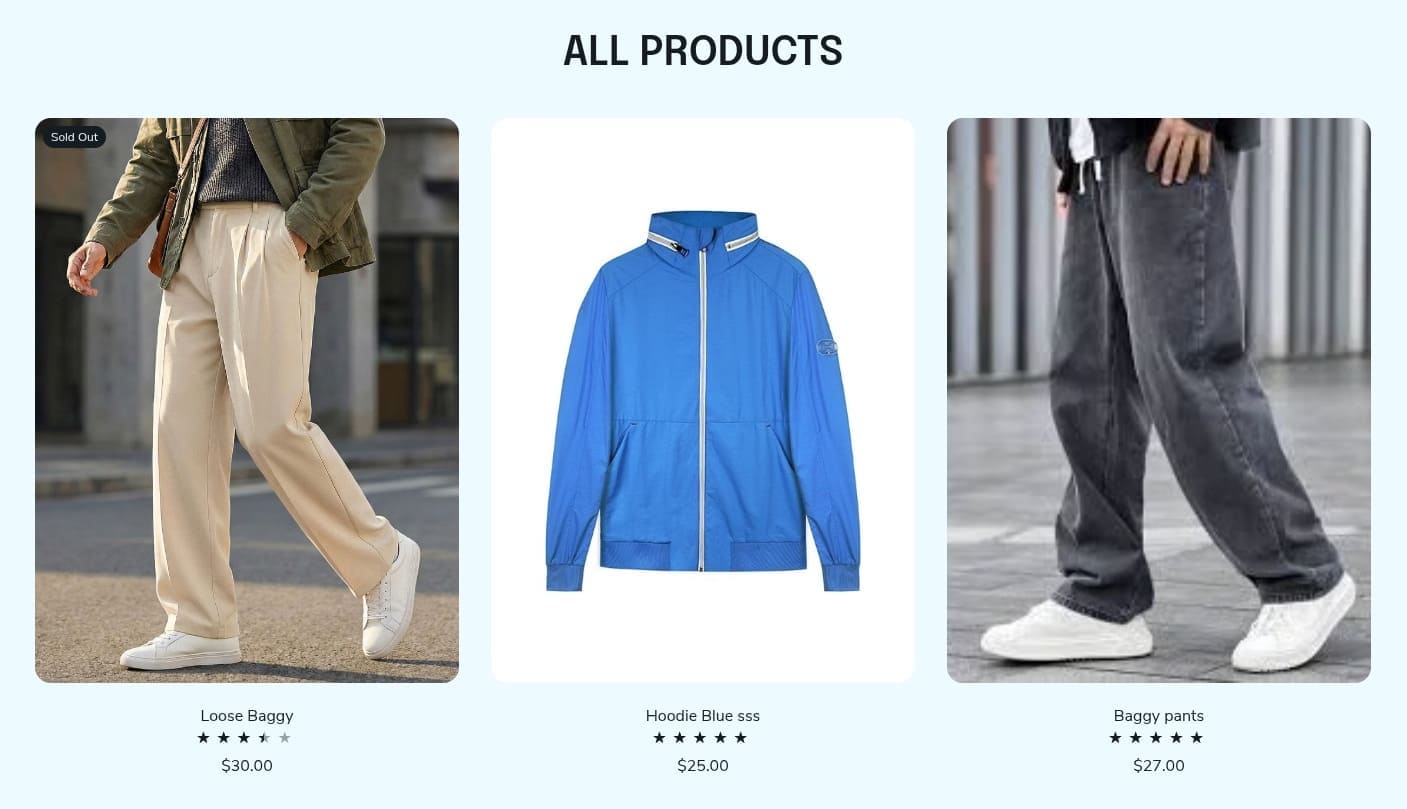
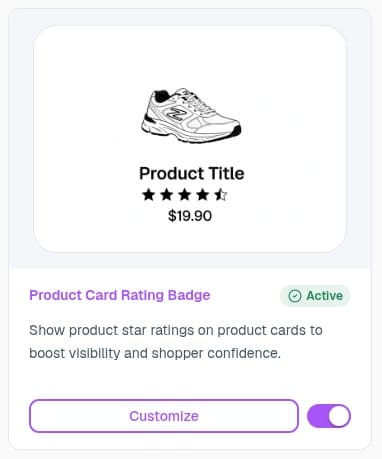
This widget shows a compact star rating directly on product cards — the little previews shoppers see on collection pages, your homepage, or anywhere else your products are listed as cards. It’s a quick way to boost visibility and shopper confidence before they even click into a product.
Product Review widget:
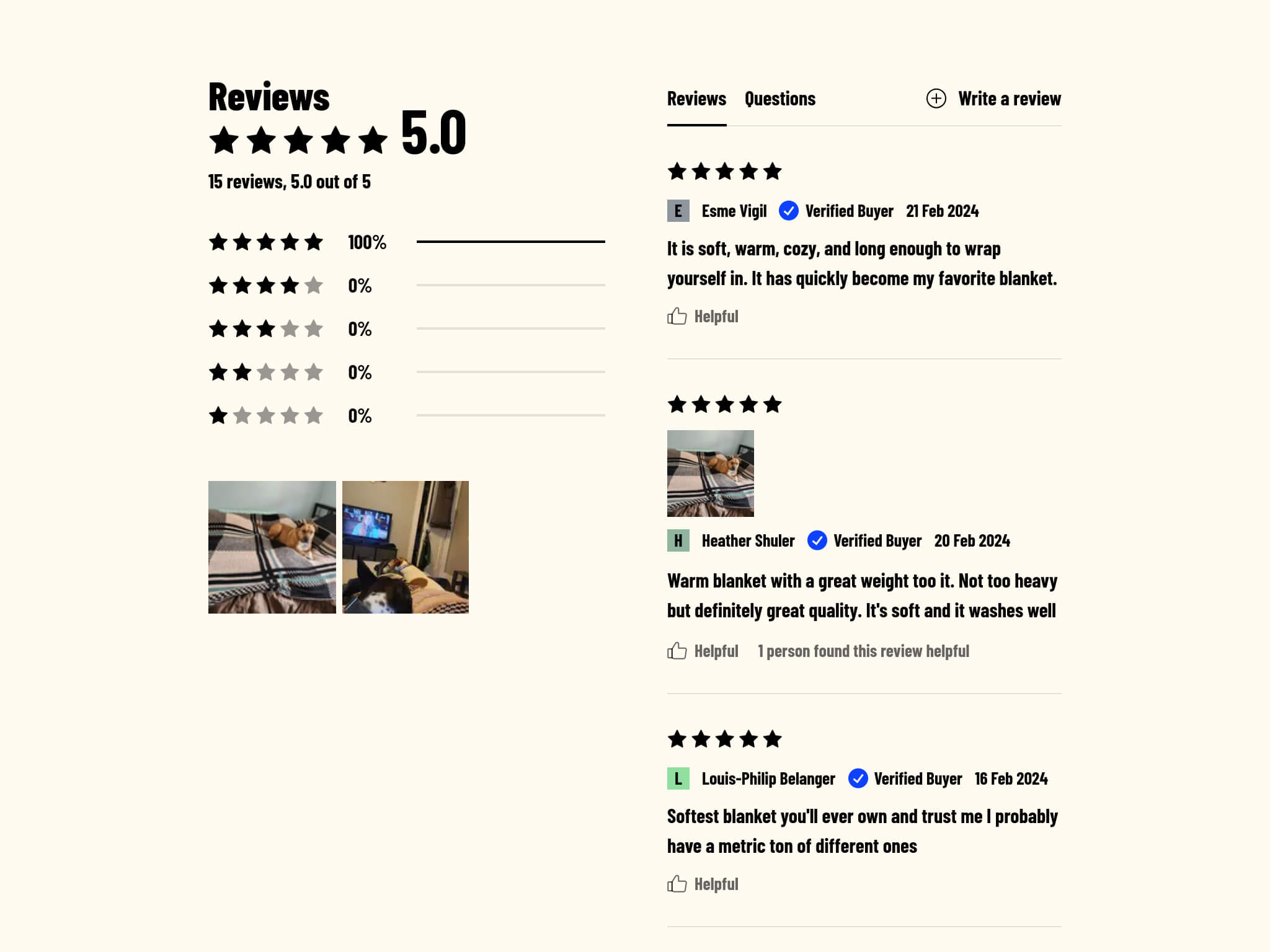
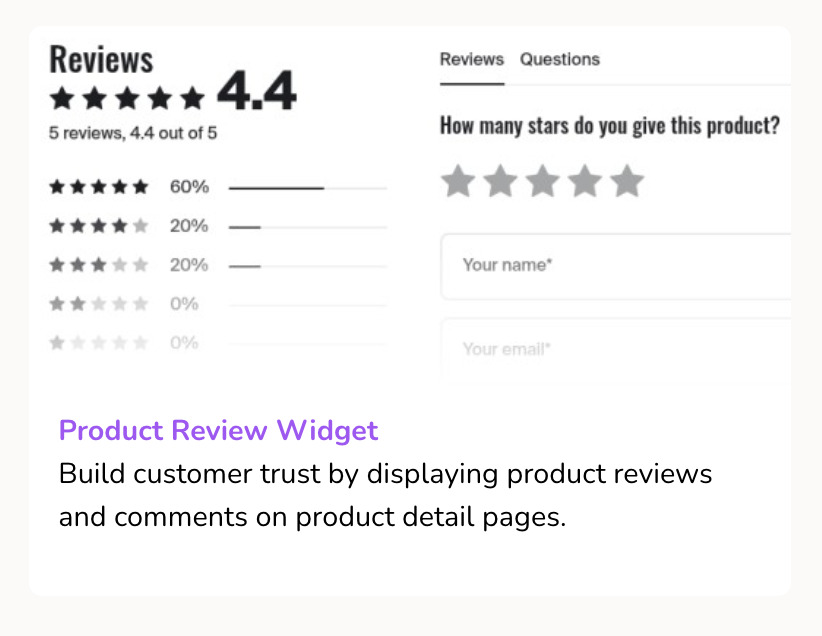
This is the widget that is intended to show up in each of your product pages, showcasing the reviews of each your products. It will show a summary of your product star rating, and it will also show details of each review that was published by your team. Click here to learn more about managing your shop’s reviews.
Star rating badge:
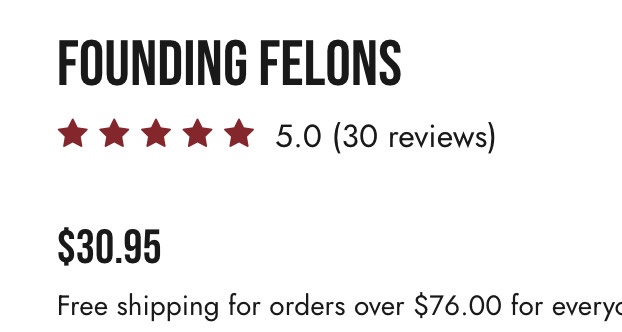
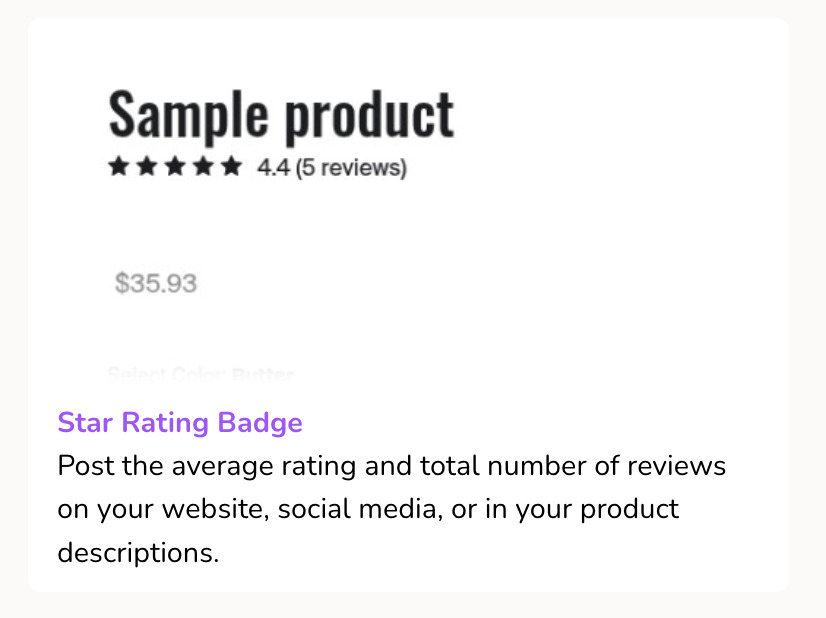
This is the widget that shows a summary of the star rating of your product. It is calculated by averaging all the published reviews of your product. Many creators and sellers choose to show this widget below the product title on the product page or somewhere on each tile on a collection page:
General Review widget:
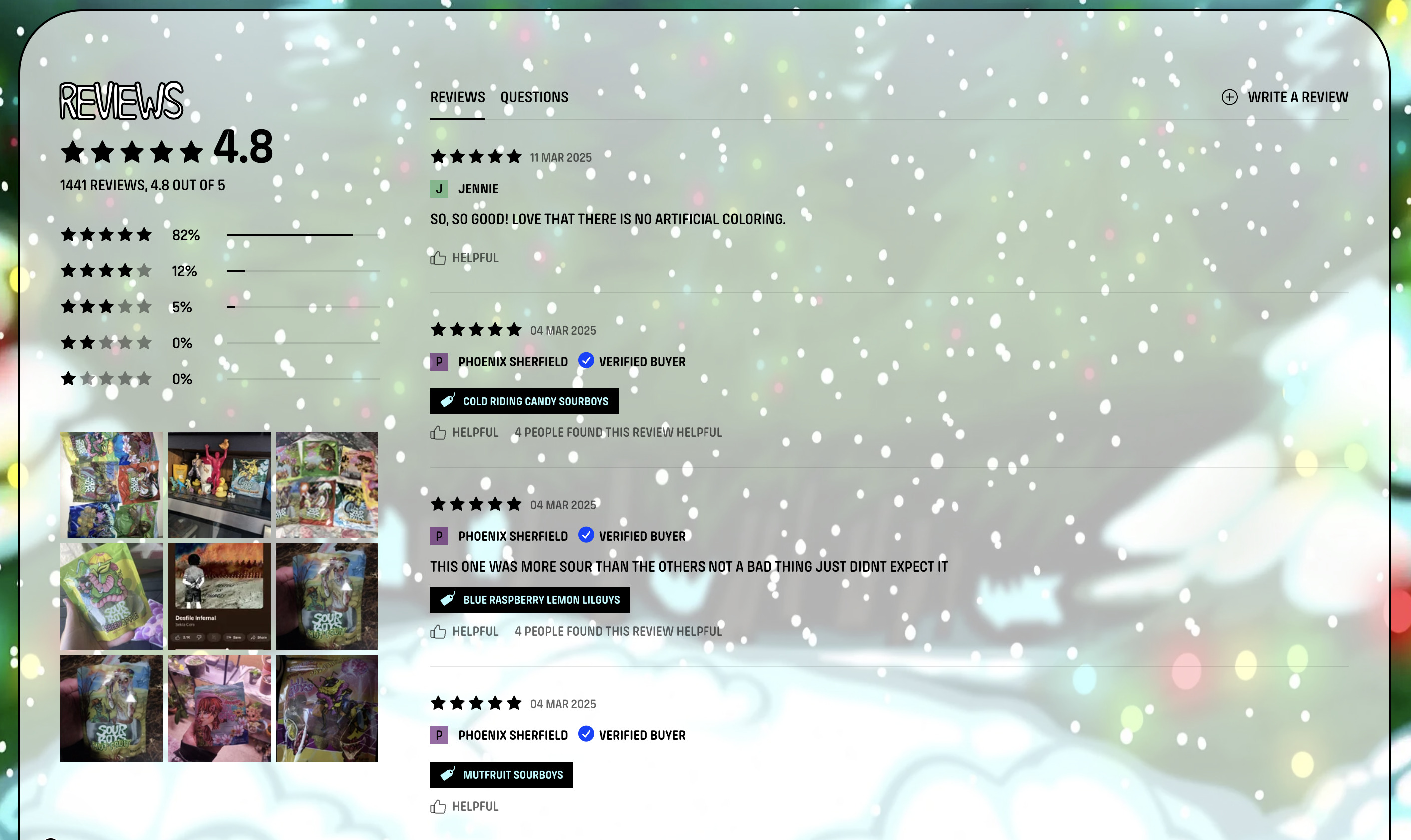
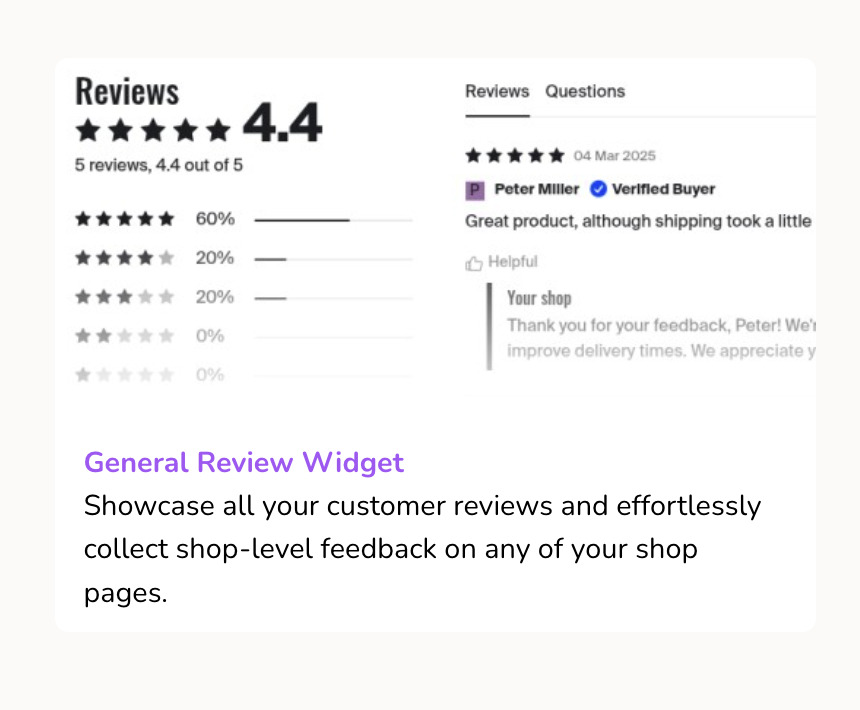
This widget is designed to show reviews of ALL your product (published reviews). It can be shown on any page of your store (including homepage and product pages). This widget, wherever you decide to display it, will show the same rating average, the same number of widgets, and the same reviews on every place where it is displayed.
Review Form widget:
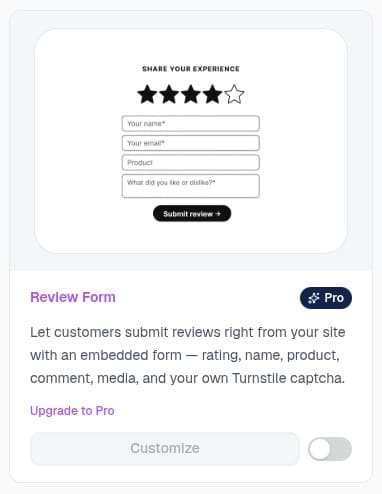
This is a newer widget: an embeddable form that lets customers submit a review right from your site — with rating, name, product, comment, media, and its own Turnstile captcha built in. It’s a Pro feature, so if you’re not on the Pro plan you’ll see it listed but not yet enabled.
Step 3: Showcase Your Review Widgets
Now that you’ve set up your EchoBrain account and integrated it with your shop, it’s time to let your customer reviews shine on your store. This step will guide you through two methods to display the EchoBrain review widgets in your desired locations on your site.
Method 1: Select widget placement on live site (No Code, Recommended)
For each widget EchoBrain offers, you can enable it by going into the configuration of each widget in your EchoBrain dashboard. Then, you can do the following:
1. Click “Customize” on the widget card: Log in to your EchoBrain dashboard and click on “Review Widgets” under “Reviews” on the sidebar menu. Then, click Customize on the widget you want to configure. This opens an overlay right on top of your live site, where you can move your mouse over different sections and select where you want your review widget to show up — along with the widget’s other settings (layout, colors, etc.).
Note: If you are logged into your Fourthwall shop dashboard in another tab, and you click Customize and you are not able to select where to place your widget, it’s likely that the EchoBrain script you added to your theme on your Fourthwall’s Site Designer might not be working correctly. If this happens, please contact us at info@echo-brain.com.
2. Make your placement selection: Once you click the button, you will be taken to a view of your live site. Depending on the widget you are configuring, you will be able to select the placement of your widget on different pages of your site. For example, if you are configuring the “Product Reviews widget”, you will only be able to select the placement on a sample product page. Once you make the selection, the widget will be shown in that place on all of your shop’s product pages using Fourthwall’s default product template. On the other hand, if you are configuring the “General Reviews widget”, you will be able to select the placement on any page of your shop.
You can also navigate between different pages while in edit-mode — this matters most for custom pages in Fourthwall. If you’ve built a custom page for one or more specific products (instead of using the default product template), the placement you picked on the default template won’t carry over to that custom page, since it uses a different section layout. You’ll need to navigate to that custom page in edit-mode and pick a placement there too.
3. Placement saves automatically: Unlike the rest of a widget’s settings, your placement selection is saved the moment you click a spot — there’s no Save button to click for it. If you also adjust other settings for the widget (layout, display conditions, colors, etc.) while you’re in there, remember those do need you to click Save before leaving.
For a more detailed explanation of how this method works, please visit this article.
Method 2: Adding HTML Placeholders (Only if you are not able to make Method 1 work)
You can also manually add empty HTML placeholders within your theme code, if you have access to it. These placehodlers act as designated spots where EchoBrain will insert the reviews widget. You can also ask the development team to add them for you. Here’s how to do it:
1. Identify the areas: Identify the areas where you want the reviews widgets to appear, such as below the main product section. Add an empty HTML placeholder like the ones shown below. If you don’t have access to make this code change yourself, contact support to have Fourthwall’s developer team do it for you and add the placeholders in the areas that you have identified. The HTML placeholders for the currently available widgets look like the following:
General Review widget: (widget that shows ALL your reviews)
<div data-reviews="general_review_widget"></div>
Product Review widget: (widget that shows reviews belonging to one specific product)
<div data-reviews="review_widget"></div>
Star rating badge (to show rating average and stars):
<div data-reviews-summary="{{ product.id }}"></div>
2. Save Changes: Save the changes to your theme code. EchoBrain’s script will automatically detect these placeholders and populate them with the review widgets.
Step 4: Repeat Step 3 for each review widget you want to display
You can set the placement for each widget you want to display. Each widget card shows its current status (Active, No placements, Inactive, Disabled, or Pro), so you can tell at a glance which ones are live on your site and which you’ve turned off.
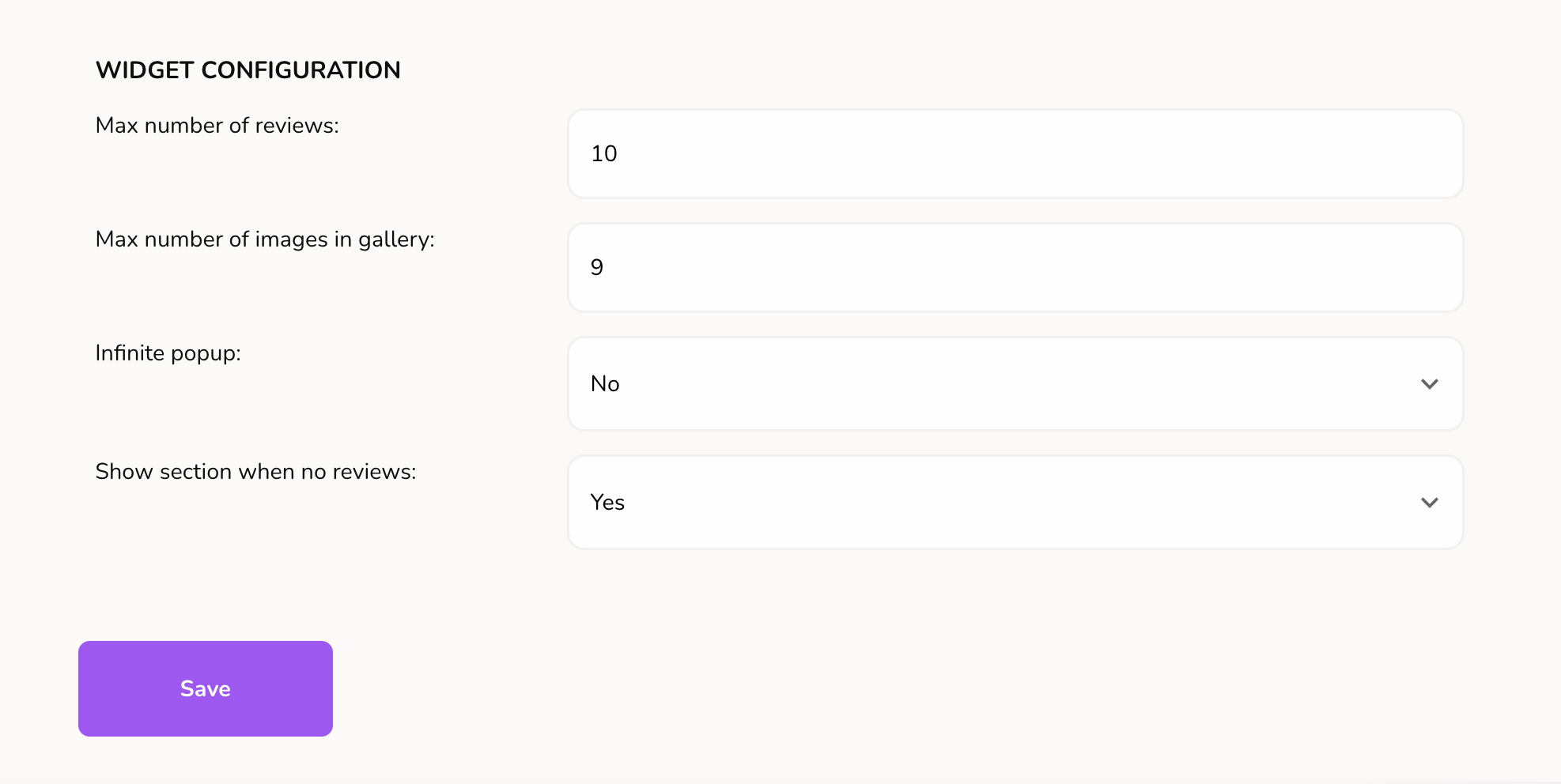
Inside each widget’s Customize overlay, you’ll find settings grouped into sections like Layout, Display conditions, Review content, Colors & Style, and Advanced. Most widgets share the same sections, but the exact options inside each one vary depending on the widget — a few examples:
- Layout: choose between “Default” or “Carousel”.
- Max number of reviews: maximum number of reviews to show per page (Product Review and General Review widgets).
- Show media gallery / Max media items in gallery: whether to show a media gallery, and how many items to include (Product Review and General Review widgets).
- Show widget when there are at least these many reviews: set a minimum review count before the widget appears — useful if you’d rather not show an empty widget while you’re still collecting your first reviews.
Not every widget has every one of these — the Star Rating Badge, for instance, has its own “Display data” setting instead (average only, count only, or both) rather than a media gallery.
Final Steps
After following these steps, visit your store to verify that the review widgets are displaying correctly. If you encounter any issues, the EchoBrain support team is ready to assist you. Congratulations, you’re now ready to showcase your customer reviews and build stronger trust with your audience! By following these steps, you’re ensuring that EchoBrain seamlessly integrates into your store, providing your customers with authentic and engaging reviews exactly where they’re most impactful. Enjoy the enhanced engagement and credibility that EchoBrain brings to your e-commerce journey!
Note
If you have followed all the steps on this guide, and you cannot select where to place your widget, or after adding the EchoBrain script to your site and adding your first review, you don’t see your review widgets show up on your site, it’s likely that the EchoBrain script you added to your theme on your Fourthwall’s Site Designer might not be working correctly. If this happens, please contact us at info@echo-brain.com.
Next Steps
- Click here to learn how to manage the way reviews are displayed/requested on your shop: Edit number of days post-purchase to send review request emails, choose where on your pages to show your reviews, how reviews are displayed, etc.
- Click here to learn how to check the reviews that have been submitted by your customers, reply to them, and publish the ones you want to showcase in your product pages.
- Click here to learn how to manually add your first review while you wait for customers to submit new reviews.
- Click here to learn about how reviews are collected with EchoBrain.