Exporting and Importing reviews with EchoBrain
Managing your reviews efficiently is crucial for maintaining credibility and engagement in your store. EchoBrain allows you to export and import reviews easily, ensuring smooth data transfer and backup. Follow the steps below to get started.
Exporting reviews from EchoBrain
Exporting reviews lets you download and store your reviews in different formats. Here’s how to do it:
-
Log in to your EchoBrain dashboard.
-
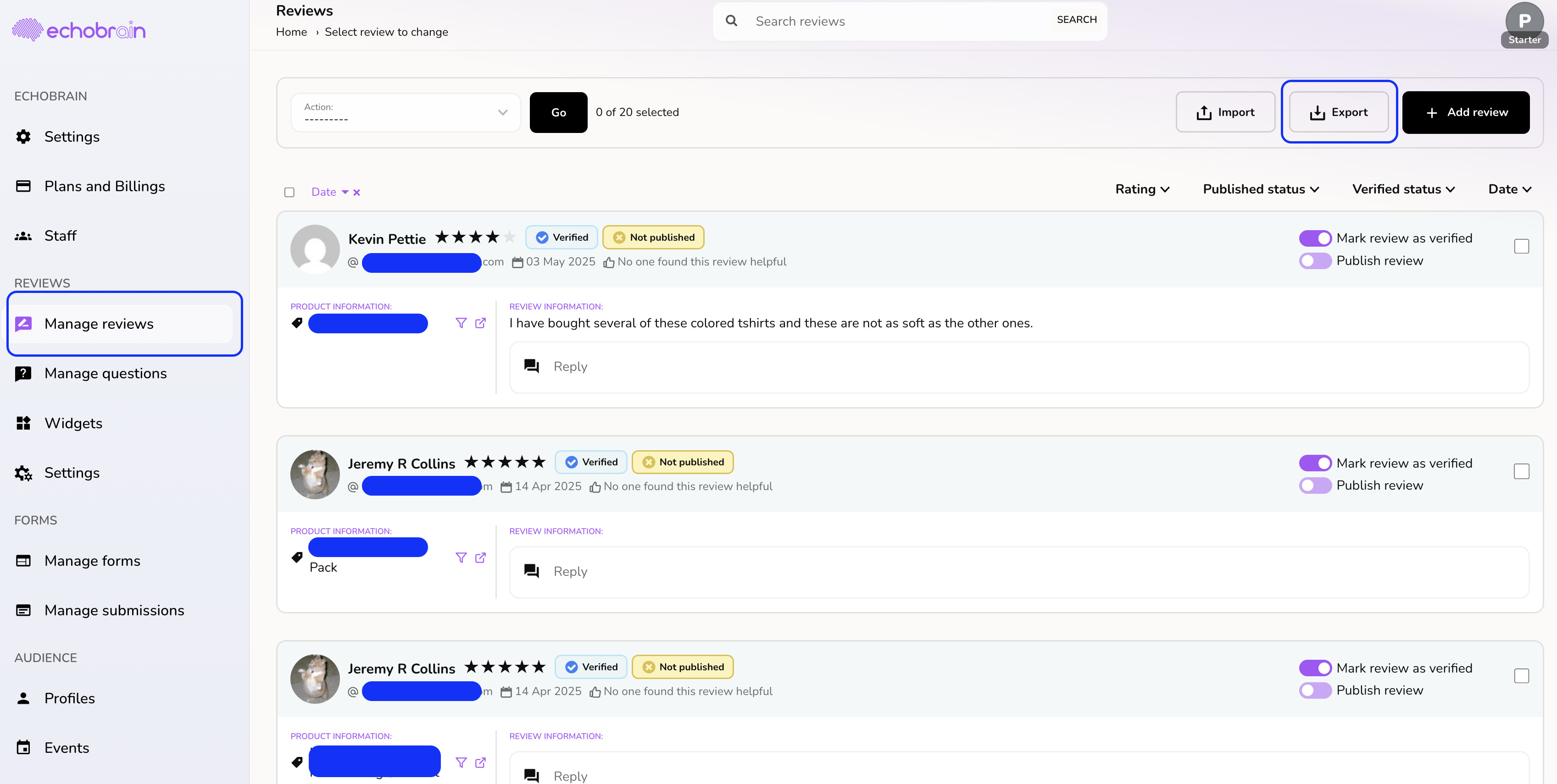
On the left-side bar, click on “Manage Reviews” under “Reviews”.
-
Select the reviews you want to export using the checkboxes next to each one — or check “Select all” to export every review currently in the list.
-
Click the Export button at the top right of the page.
-
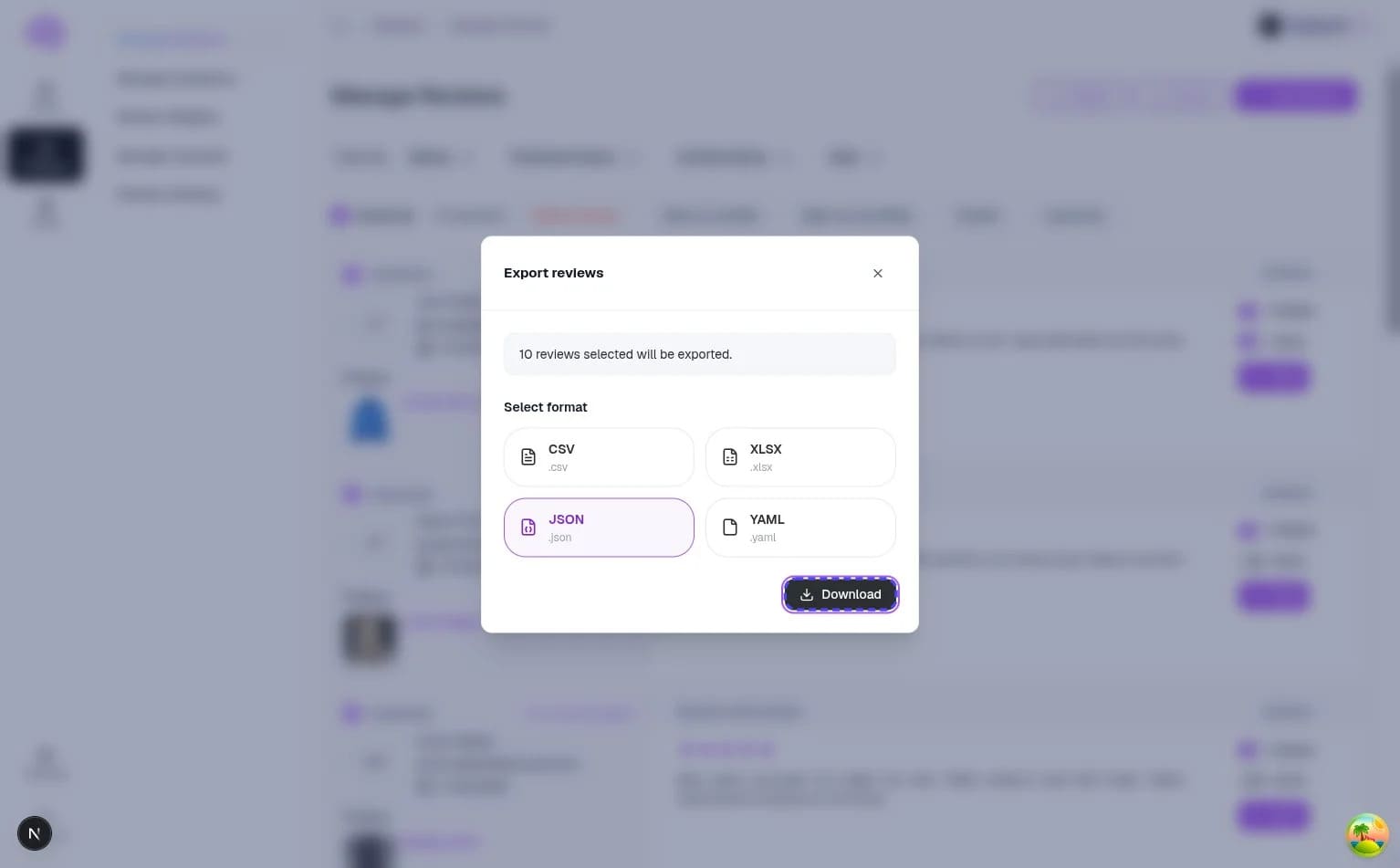
In the “Export reviews” modal, you’ll see a confirmation of how many reviews are about to be exported based on your selection. Choose the format you want to download them in:
- JSON
- XLSX
- CSV
- YAML
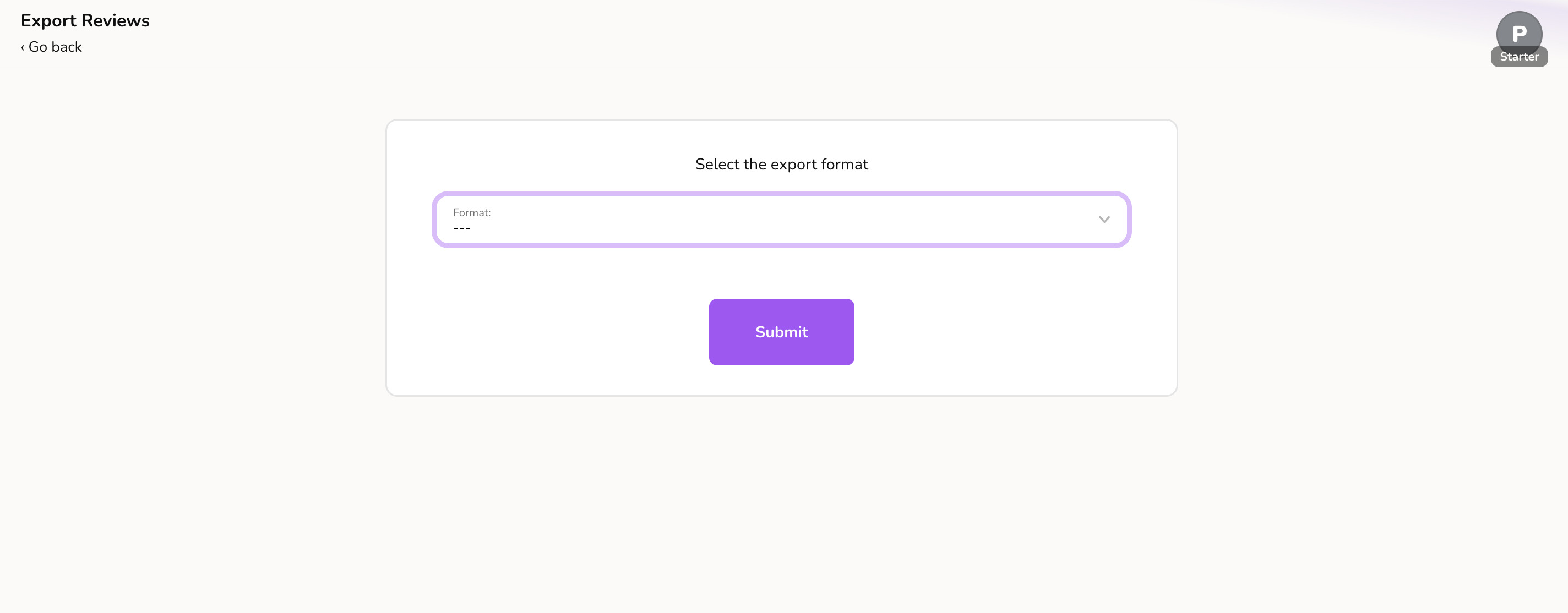
- Click Download, and your reviews will be exported in the selected format.
Importing Reviews into EchoBrain
If you have reviews from another platform or a backup file, you can import them into EchoBrain by following these steps:
-
Log in to your EchoBrain dashboard.
-
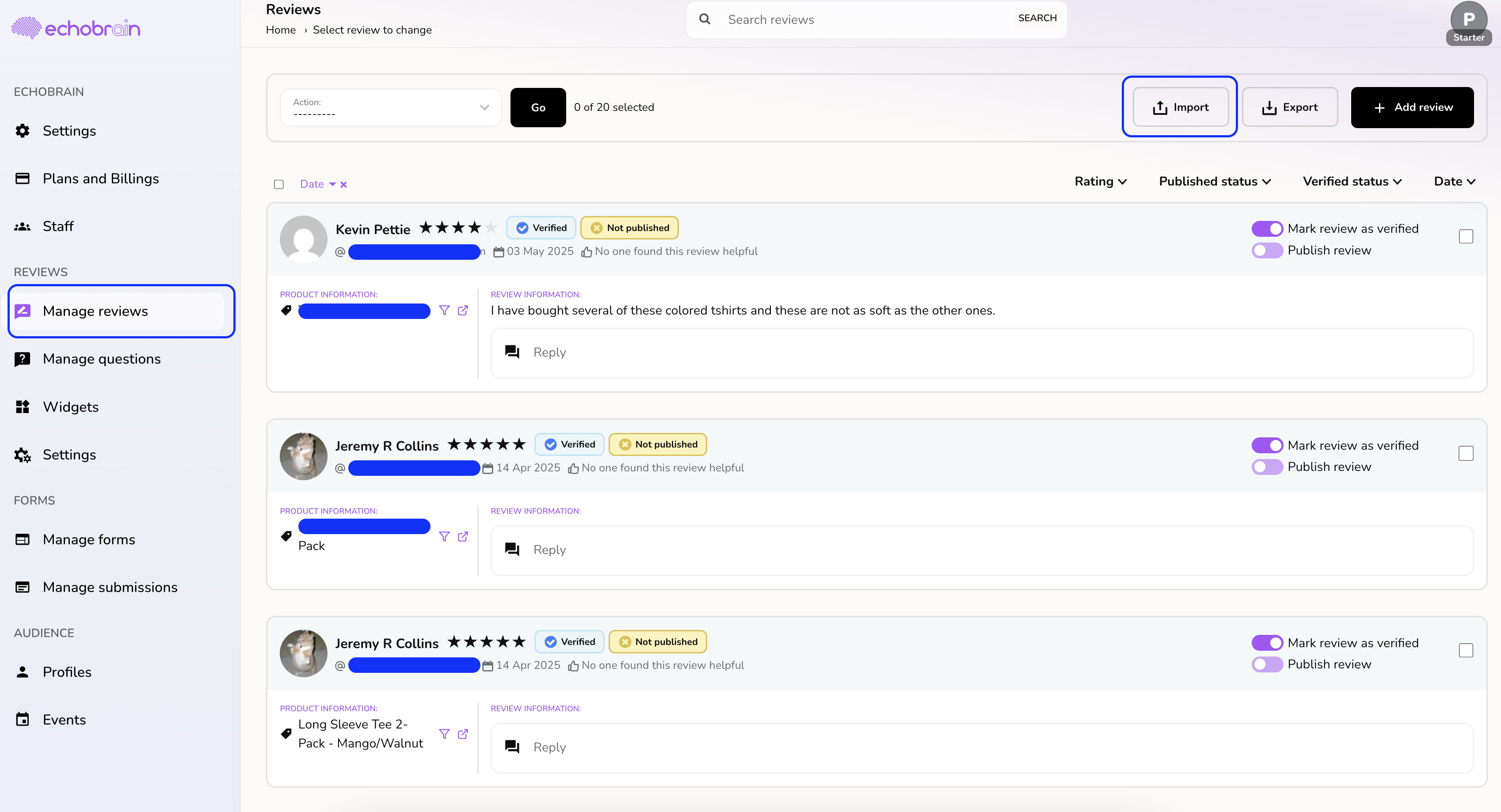
On the left-side bar, click on “Manage Reviews” under “Reviews”.
-
Click on the Import button at the top right of the Reviews page.
The import now happens in two steps: first you upload your file, then you double-check how its columns map to EchoBrain’s fields.
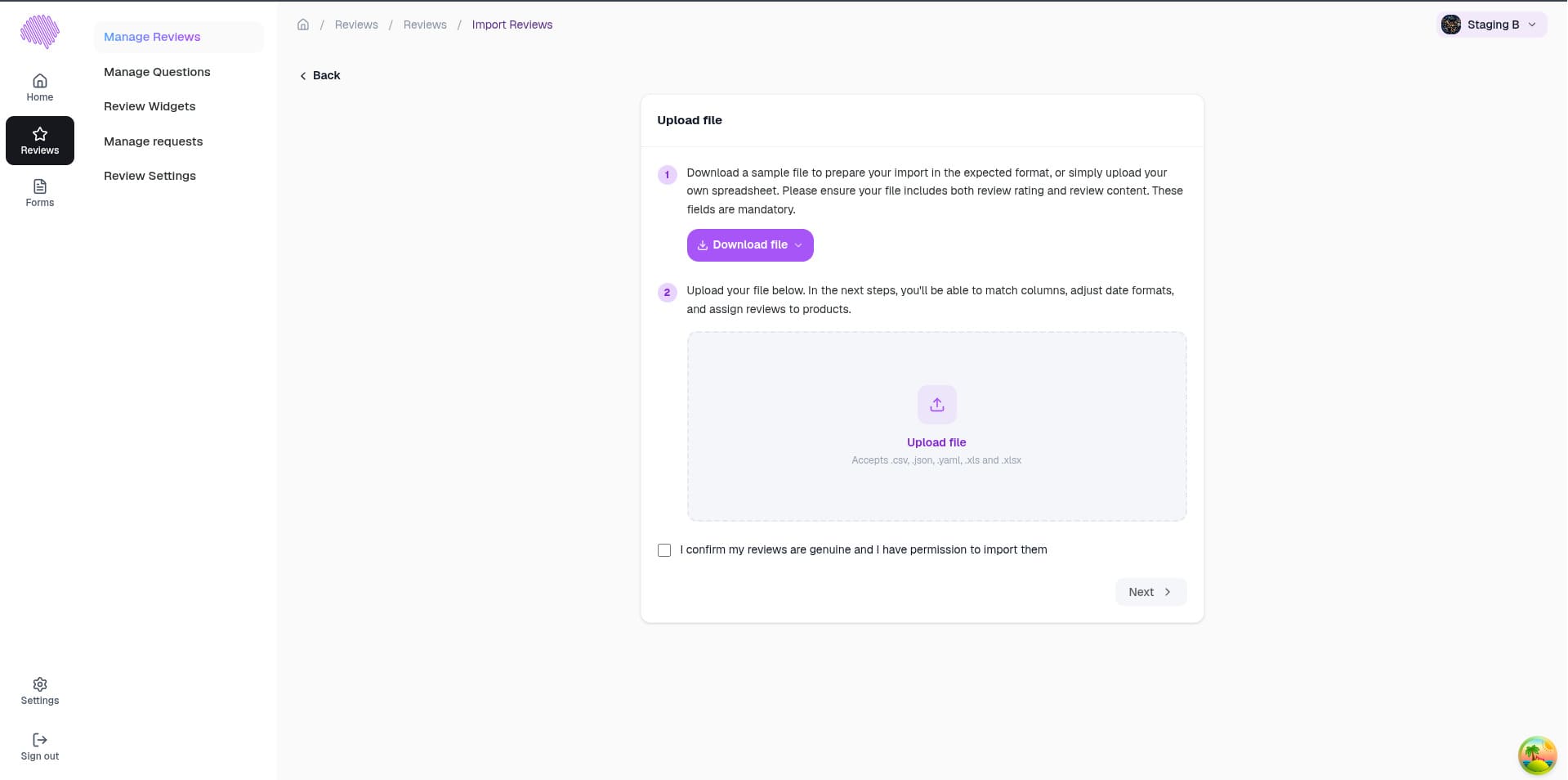
Step 1: Upload your file
-
On the Upload file screen, click “Download file” to get a template in your preferred format (JSON, XLSX, CSV, or YAML), or simply prepare your own spreadsheet with the fields below. Rating and comment are mandatory; everything else is optional:
- productId (Fourthwall product id. If not included, review will be imported as a “general” review)
- name (the author’s name)
- email (the author’s email)
- comment (comment made by review author) - mandatory
- reply (reply by shop’s team to the comment made by the author)
- rating (integer value from 1 to 5) - mandatory
- images (images related to the review)
- likes (number of likes this review has)
- publish (whether or not this review should be published as soon as it is imported)
- verified (whether or not this review should be marked as “Verified” when imported)
- tags
- created_at
- updated_at
-
Drag your filled-in file into the upload area (accepts .csv, .json, .yaml, .xls, and .xlsx), check the box confirming your reviews are genuine and that you have permission to import them, then click Next.
Step 2: Map your fields
-
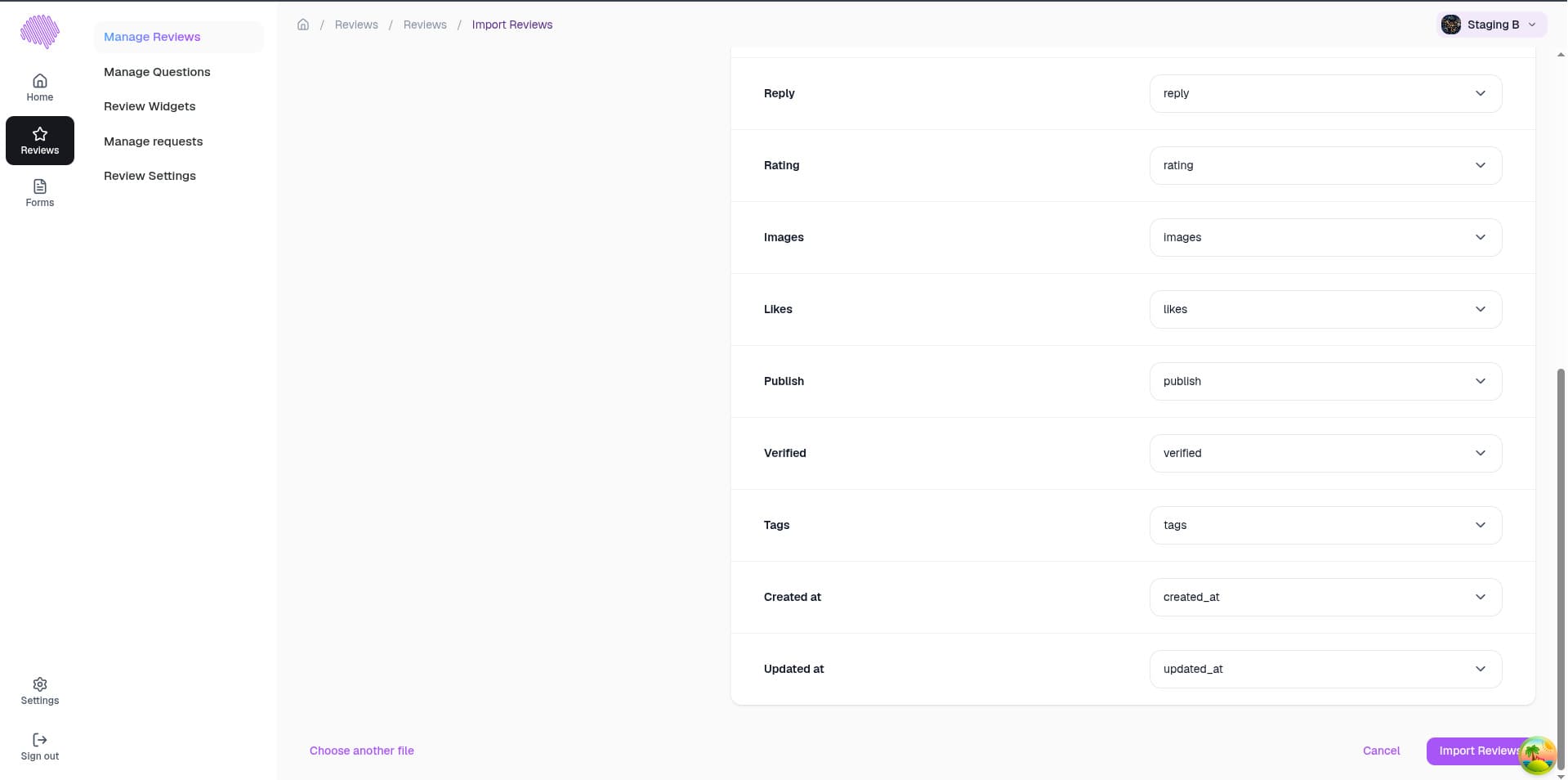
On the Map Import Fields screen, EchoBrain’s Smart Match automatically matches your file’s columns to the fields above based on their header names. Double-check each dropdown — this is your chance to fix any field that isn’t pointing to the right column, or that Smart Match couldn’t match with full confidence, before anything is imported.
-
Once everything looks right, click “Import Reviews” and your reviews will be imported.
Note
If you only want to create/import one review, using the Import feature is usually overkill. To create/import only one review at a time, you can just use the “Add review” form. Click here to learn more .
Final Thoughts
By using the export and import features in EchoBrain, you can easily back up your reviews, migrate data between stores, or bulk upload new customer feedback. This makes managing your reviews efficient and ensures your store stays up-to-date with customer experiences.
Need further assistance? Visit the EchoBrain Help Center or contact support for more information.