Select the Placement of Your Review Widgets
EchoBrain allows you to control exactly where your review widgets appear in your Fourthwall store. Whether it’s your Product Review Widget, General Review Widget, or Star Rating Badge, you can now visually select the placement without manually entering CSS selectors.
Follow this guide to quickly configure your widget placement.
1. Accessing the Widget Settings
- Log into your EchoBrain Dashboard.
- In the left-hand sidebar, click Review Widgets under the Reviews section.
- You’ll see a card for each widget type EchoBrain offers:
- Product Card Rating Badge
- General Review Widget
- Product Review Widget
- Star Rating Badge
- Review Form Widget (an embeddable form so customers can submit a review right from your site)
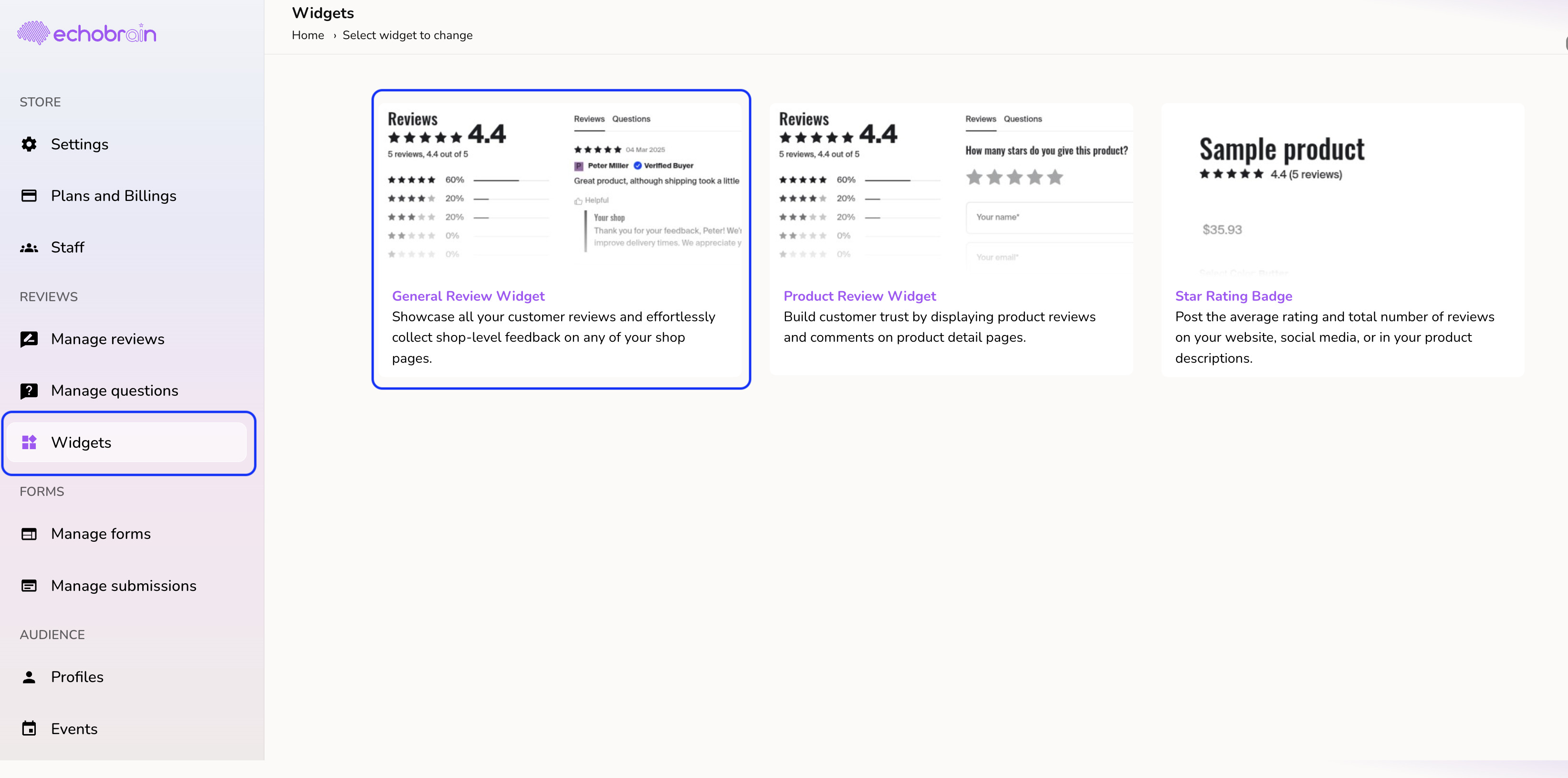
Each card shows a status badge — Active, No placements, Inactive, Disabled, or Pro — so you can tell at a glance whether a widget still needs a placement.
2. Enable or Disable a Widget
Next to the Customize button on each widget card, there’s a switch — this is the fastest way to show or hide that widget on your shop without deleting any of its settings or placements.
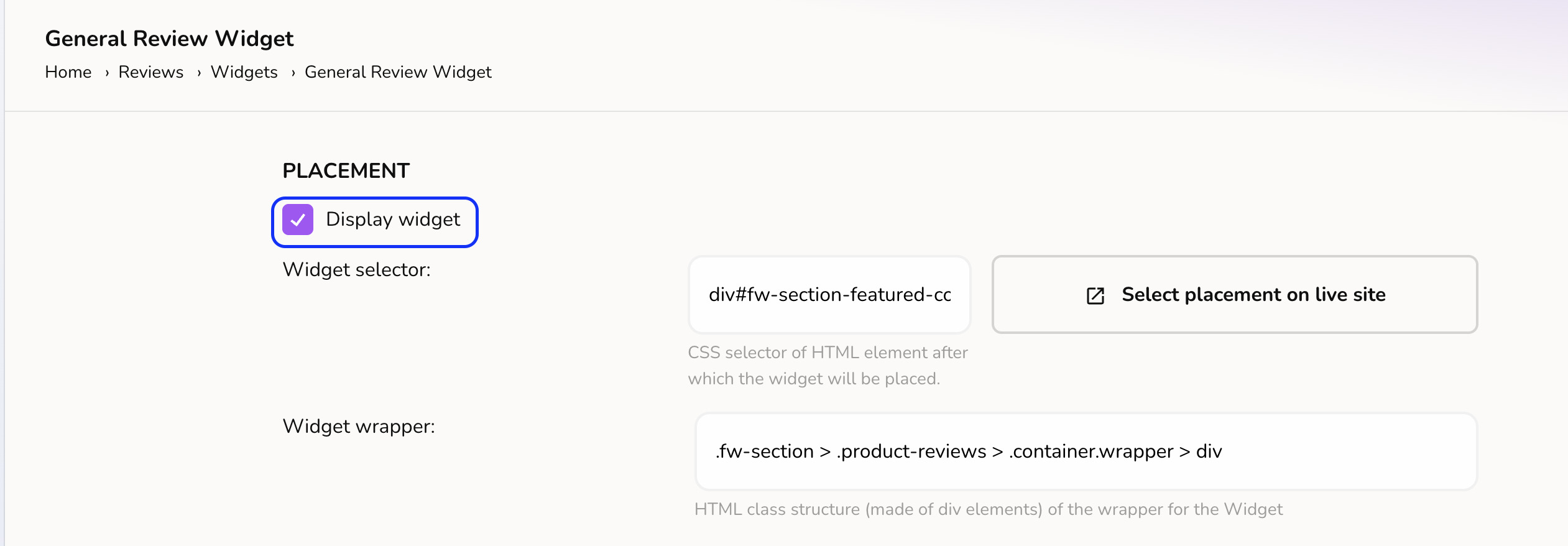
Flip it on to make the widget live on your site, or off to hide it while keeping everything configured for later.
3. Open the Customize Window
Once a widget is enabled, click Customize on its card to open the Customize window — this is where you select where the widget appears on your site (its placement) and configure everything else about it (layout, display conditions, colors, and more).
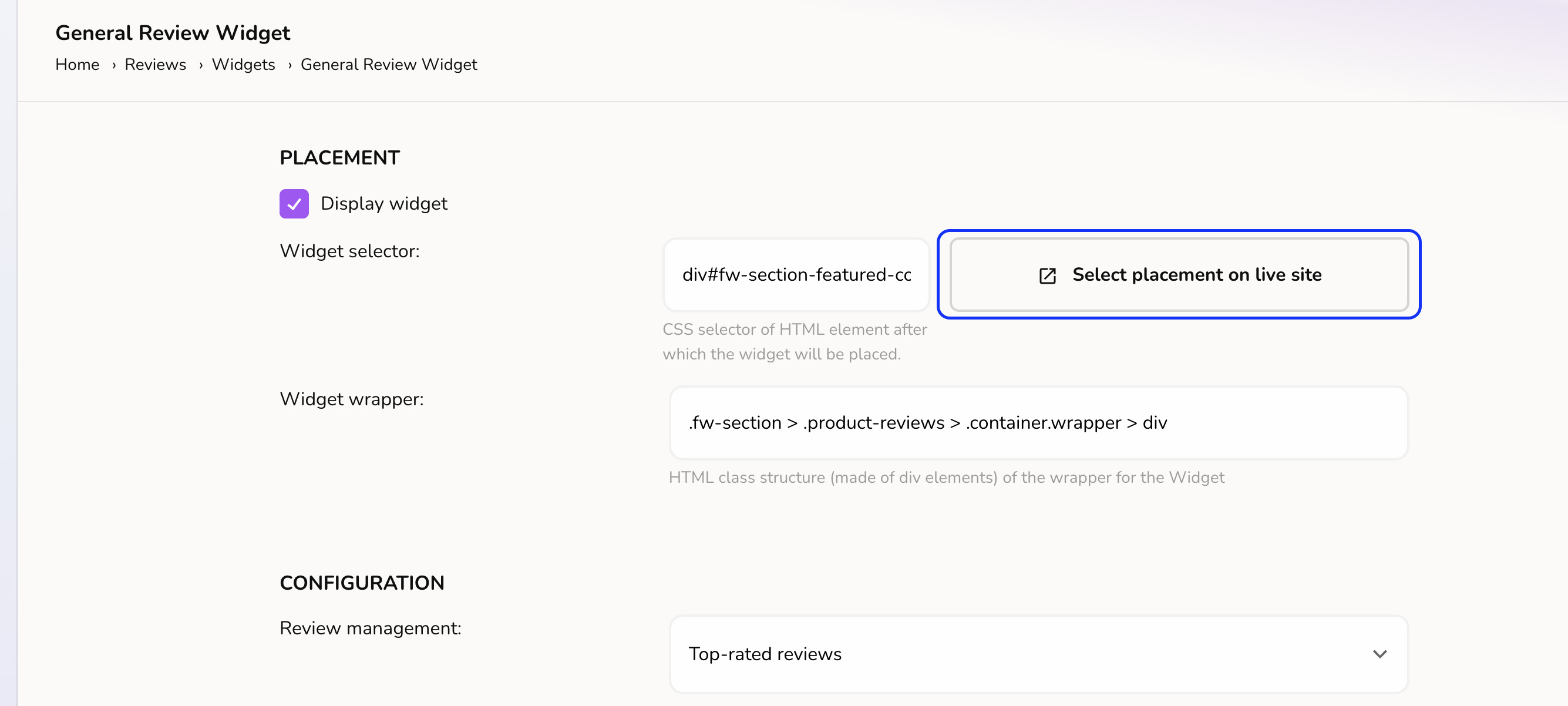
The Customize window opens as a panel right on top of your live Fourthwall site, so you can see exactly how your changes look as you make them.
4. Using the Customize Window
On the left, you’ll find the settings panel for the widget — starting with Ubicaciones (Locations), followed by sections like Layout and Display conditions, depending on the widget. On the right, your live site is shown so you can place the widget directly on it.
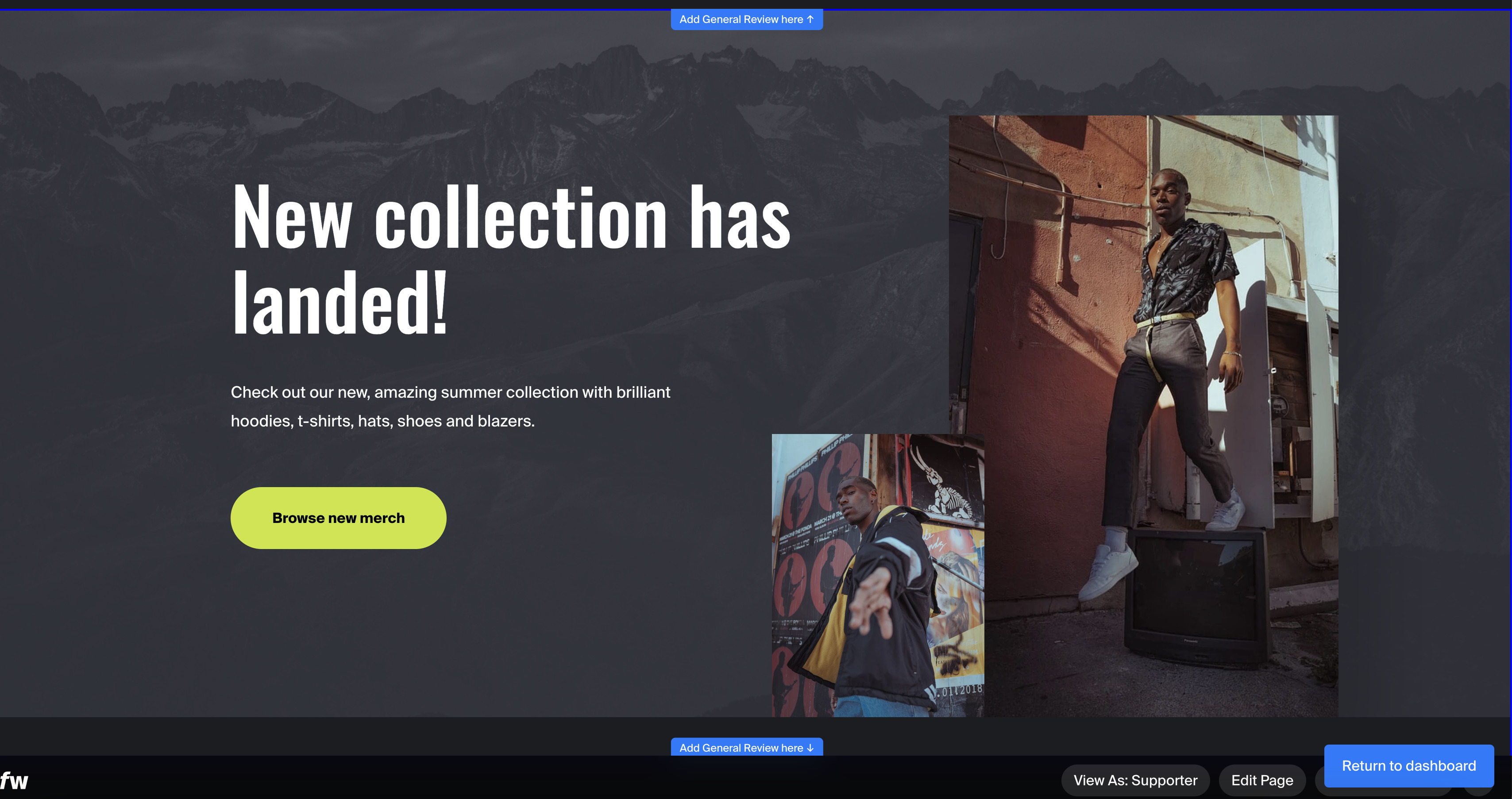
To add a placement, hover over the boundary between two sections of your page — you’ll see “Agregar widget encima” (Add widget above) and “Agregar widget abajo” (Add widget below) buttons appear, letting you drop the widget right above or below any section you choose.
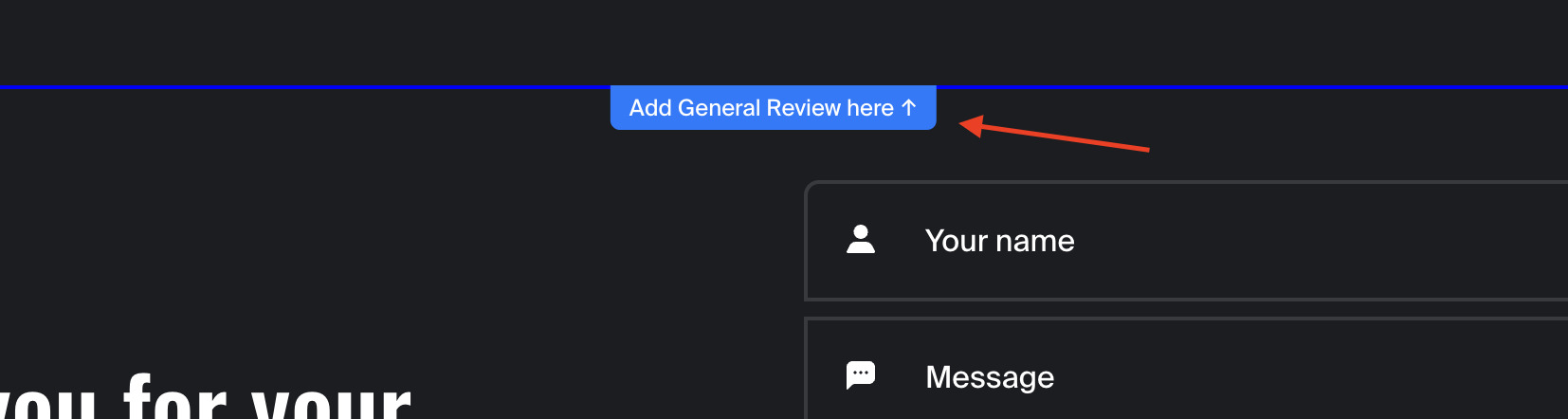
As soon as you click one of those buttons, the placement is saved automatically and shows up right away under Ubicaciones in the side panel (e.g. “Placement 1”), with the widget appearing live on the page. You can add more than one placement, and remove any of them individually with the × next to it.
Any other setting you change in the panel — Layout, Display conditions, colors, and so on — is not saved automatically. Once you’re happy with everything, click “Guardar cambios” (Save changes) at the bottom of the panel. If you’d rather discard what you changed, click “Cerrar” (Close) instead — there’s no separate “Return to dashboard” button anymore, since you never leave your live site while customizing.
Note: If you don’t see these buttons appear as you hover over your site, or clicking them doesn’t add a placement, it’s likely that the EchoBrain script you added to your theme on your Fourthwall’s Site Designer might not be working correctly. If this happens, please contact us at info@echo-brain.com.
A note on custom pages: if you’ve built a custom page in Fourthwall for one or more specific products (instead of using the default product template), a placement you picked on the default template won’t automatically carry over to that custom page, since it uses a different layout. Navigate to the custom page from within the Customize window and add a placement there too if you want the widget to show up on it.
5. IMPORTANT: Shops in “Coming Soon” Mode
The Customize window needs to load your actual live site to work, so if your Fourthwall shop hasn’t launched yet and is still in Coming Soon mode, make sure to unlock/launch it first — otherwise there won’t be a live site for Customize to open.
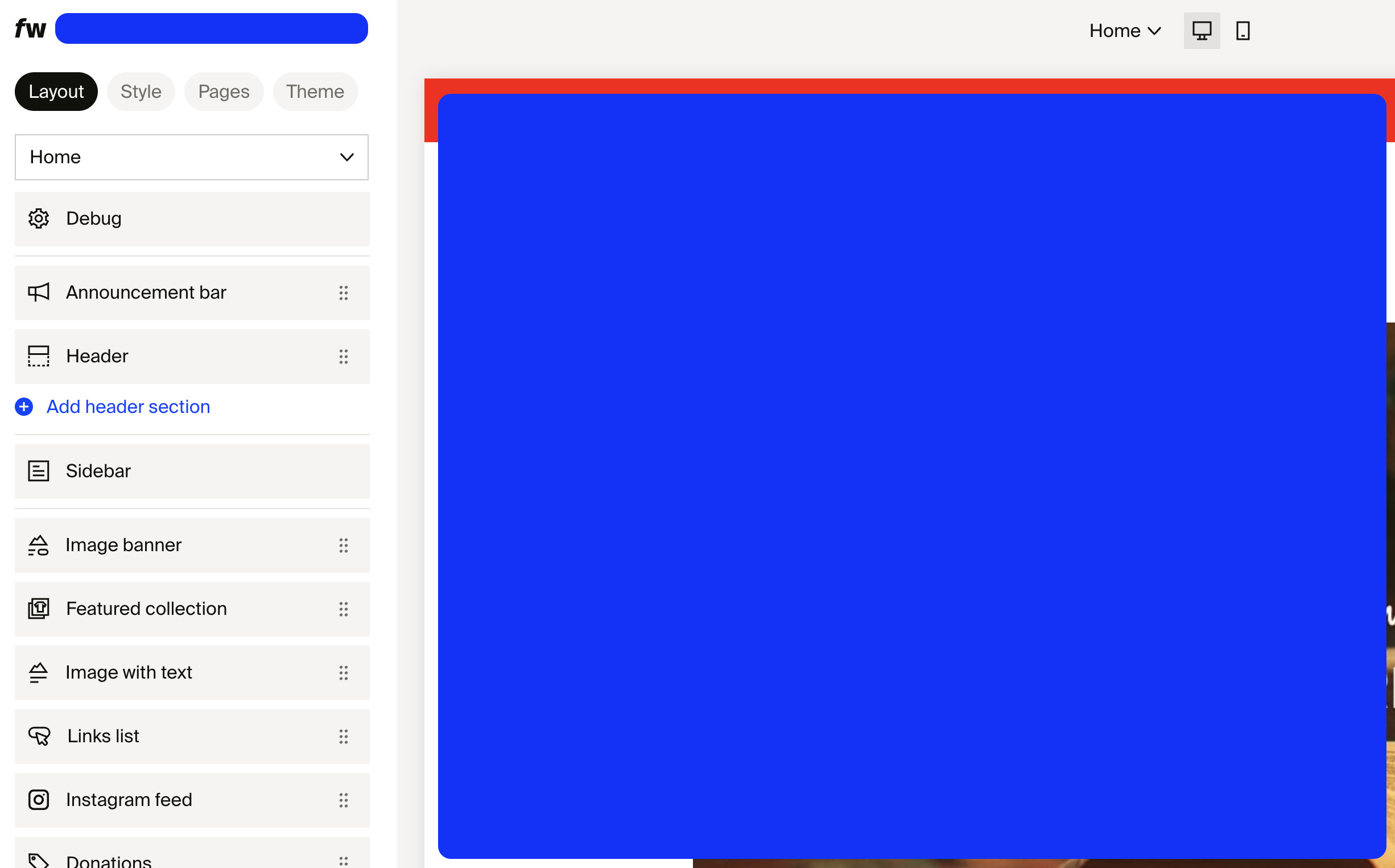
You’ll also see a reminder about this inside EchoBrain before you click Customize, if your shop is still in Coming Soon mode:
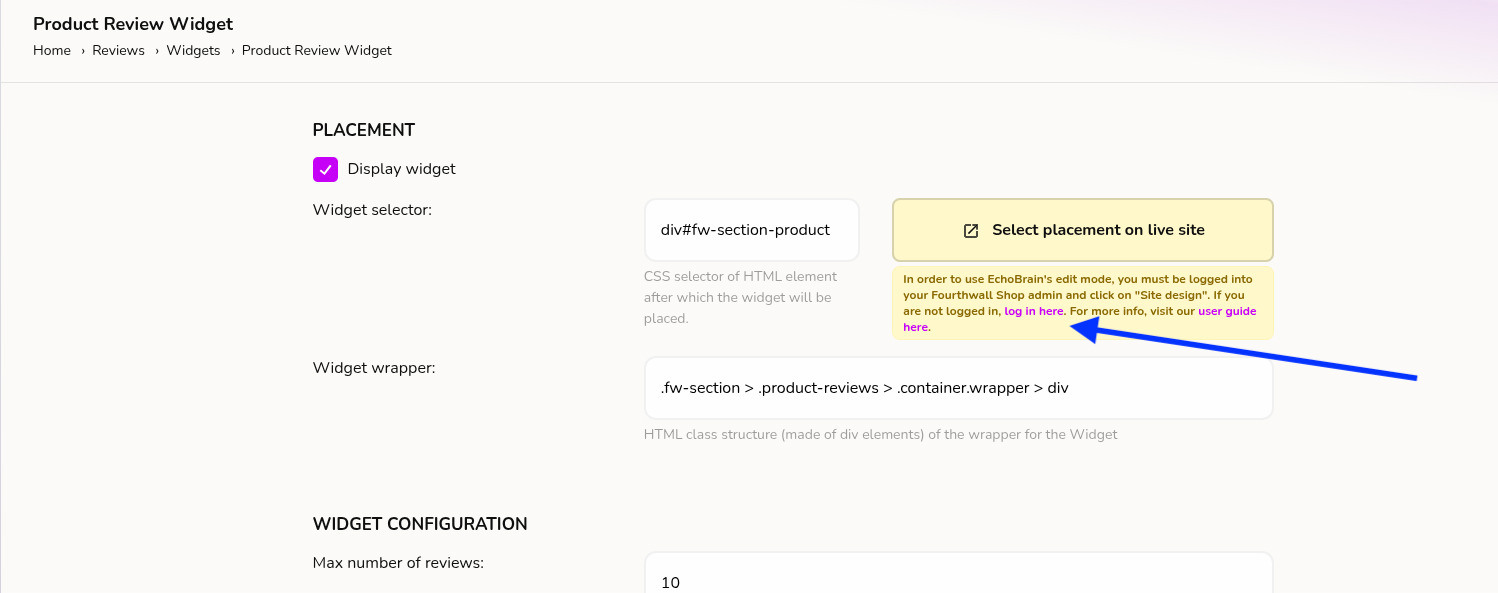
6. Save Your Widget Settings
Once you’ve added your placement(s) and adjusted any other settings you want in the Customize window, click “Guardar cambios” (Save changes) — that’s your confirmation everything was saved.
Visit your actual live shop afterward to double-check the widget is showing up exactly where you want it. If you ever want to change the placement, just open Customize on that widget again and repeat the steps above.
7. Important note regarding different widgets
With the feature we just described, you can select the placement of all the widgets offered by EchoBrain on your live site. However, the way you are able to do so varies depending on what widget you are trying to set the placement for.
- Product Review Widget: This widget is meant to show up only on product pages, so you will only be able to set the placement of this widget within a product page. If, while in the Customize window, you navigate away from a product page, you will not be able to select the placement of this widget.
- Star Rating Badge: This widget is meant to show up only on product pages, so you will only be able to set the placement of this widget within a product page. If, while in the Customize window, you navigate away from a product page, you will not be able to select the placement of this widget.
- General Review Widget: This widget is meant to show up on any page of your site. So, you will be able to set the placement of this widget on ANY page of your shop. Within the Customize window, you just need to navigate around your site until you get to the page you want to place your widget in, and select the placement for your widget.
- Product Card Rating Badge: This widget is designed to appear on every product card displayed on your website. You can configure its location within the page while in the Customize window.
- Review Form Widget: Unlike the Product Review Widget, this one isn’t limited to product pages — you can place it anywhere on your shop, just like the General Review Widget. This is a Pro feature.
8. Using Multiple Product Templates in Fourthwall
Fourthwall lets you assign different product view templates to different products, so a hoodie’s page can have a different layout than a mug’s page. If your shop uses more than one product template, there’s one extra thing to know about widget placement.
Note: “Product view template” (Fourthwall’s product page layout) is a different thing from a widget’s “template” inside EchoBrain (e.g. Product Review Widget, General Review Widget) — these two just happen to share the word “template.”
Why your widget might not show up on every product
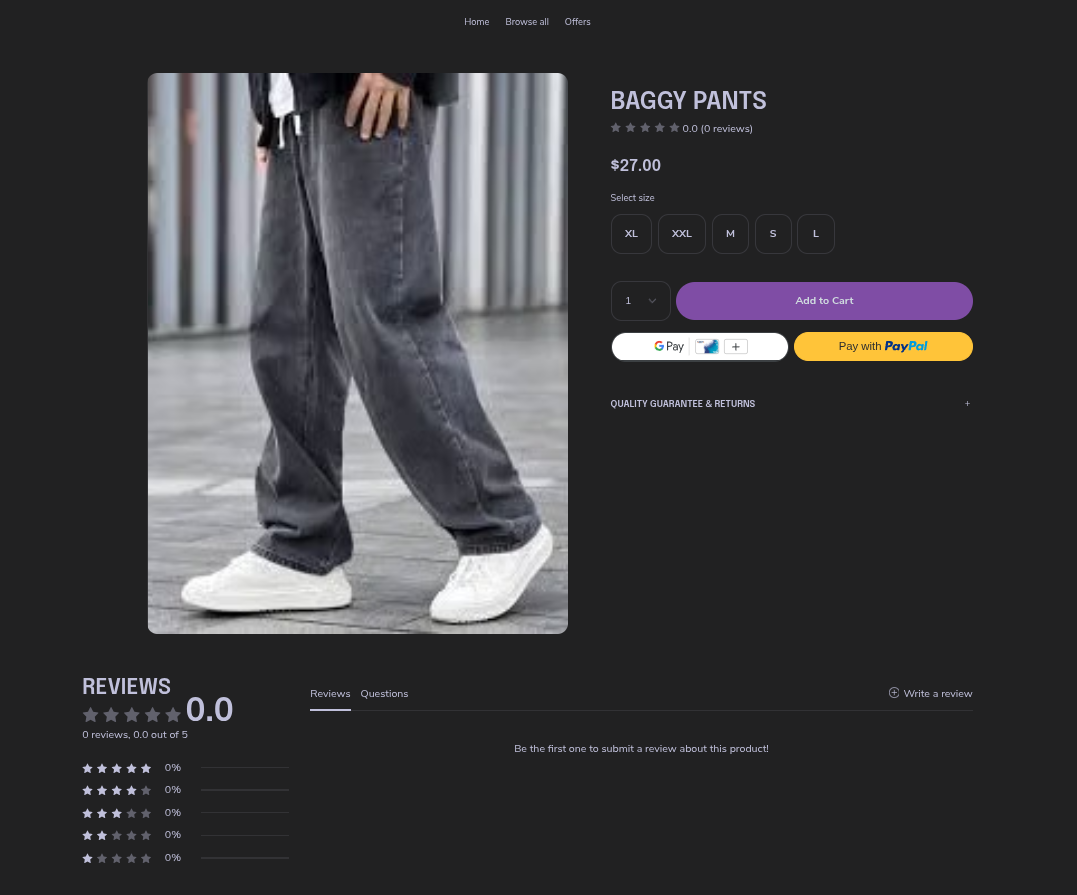
When you click Customize and pick a spot, EchoBrain remembers the exact spot you clicked on that specific product’s page. If another product uses a different template — with a different layout or different sections — that same spot may not exist there, so the widget simply won’t appear on that product.
For example, here’s a product using Fourthwall’s default template, with the widget showing up correctly in the spot we selected:
Now, here’s a different product using a custom template — notice the widget is nowhere to be found, even though it’s enabled and working on the product above:
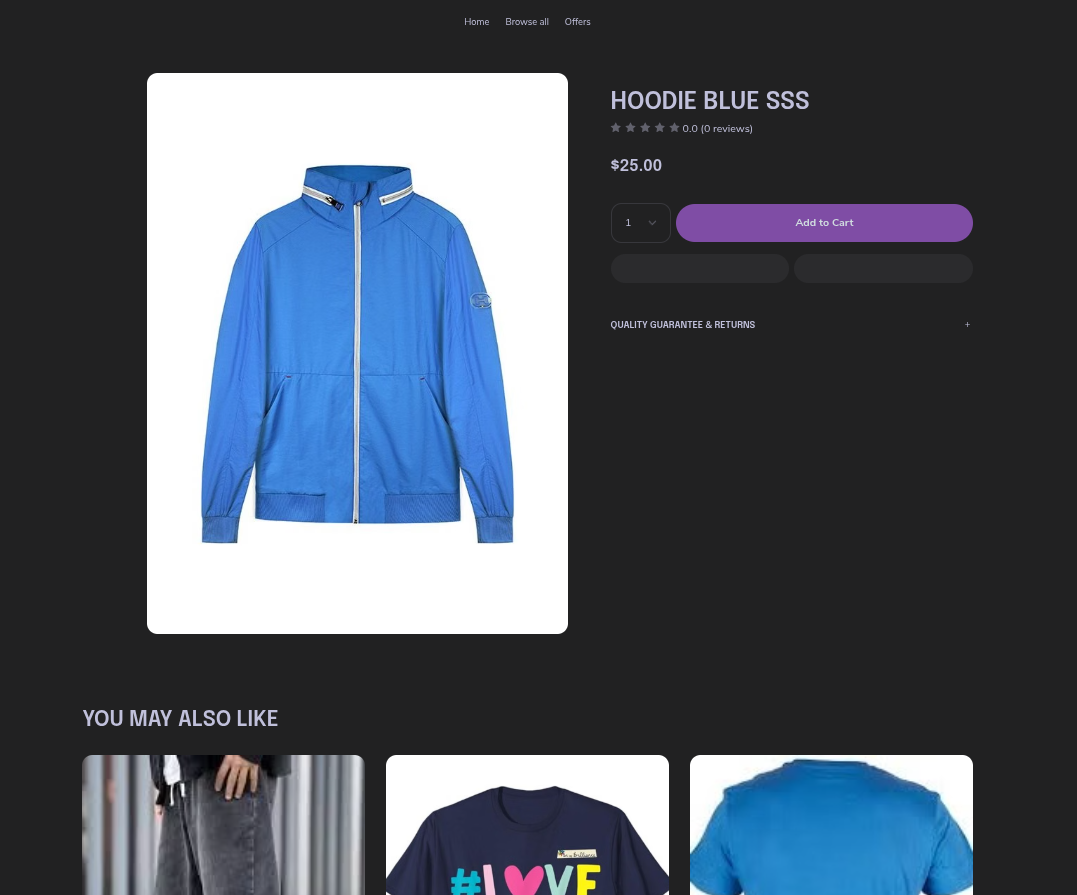
This mostly affects the Product Review Widget and General Review Widget, since their placement is tied to the specific sections you have on that page. The Star Rating Badge and Product Card Rating Badge attach to Fourthwall’s built-in product elements, so they’re much less likely to need any extra setup here.
How to fix it: add a placement for each template
The good news is you don’t have to choose just one spot — EchoBrain lets you save more than one placement per widget, and it will automatically use whichever one matches the page your customer is viewing. To cover all your templates:
- Go back to your EchoBrain dashboard and click Customize again for the affected widget.
- This time, navigate to a product that uses the other template before choosing where to place your widget.
- Click the spot where you want the widget to appear, just like before.
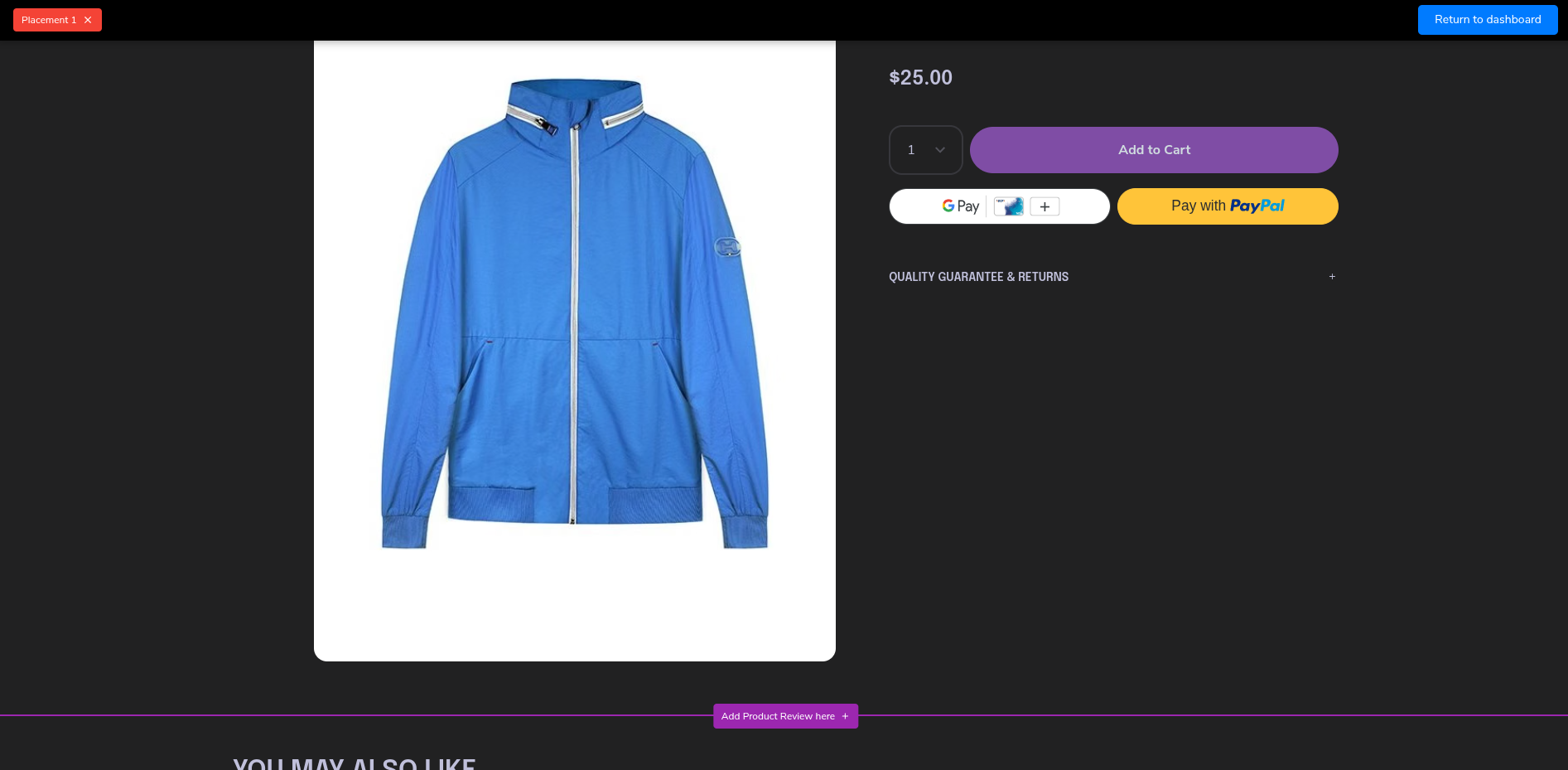
- Repeat this for every distinct product template your shop uses.
You’ll see all your saved spots listed together (Placement 1, Placement 2, and so on) under Ubicaciones in the Customize window, and you can remove any of them individually if you no longer need it.
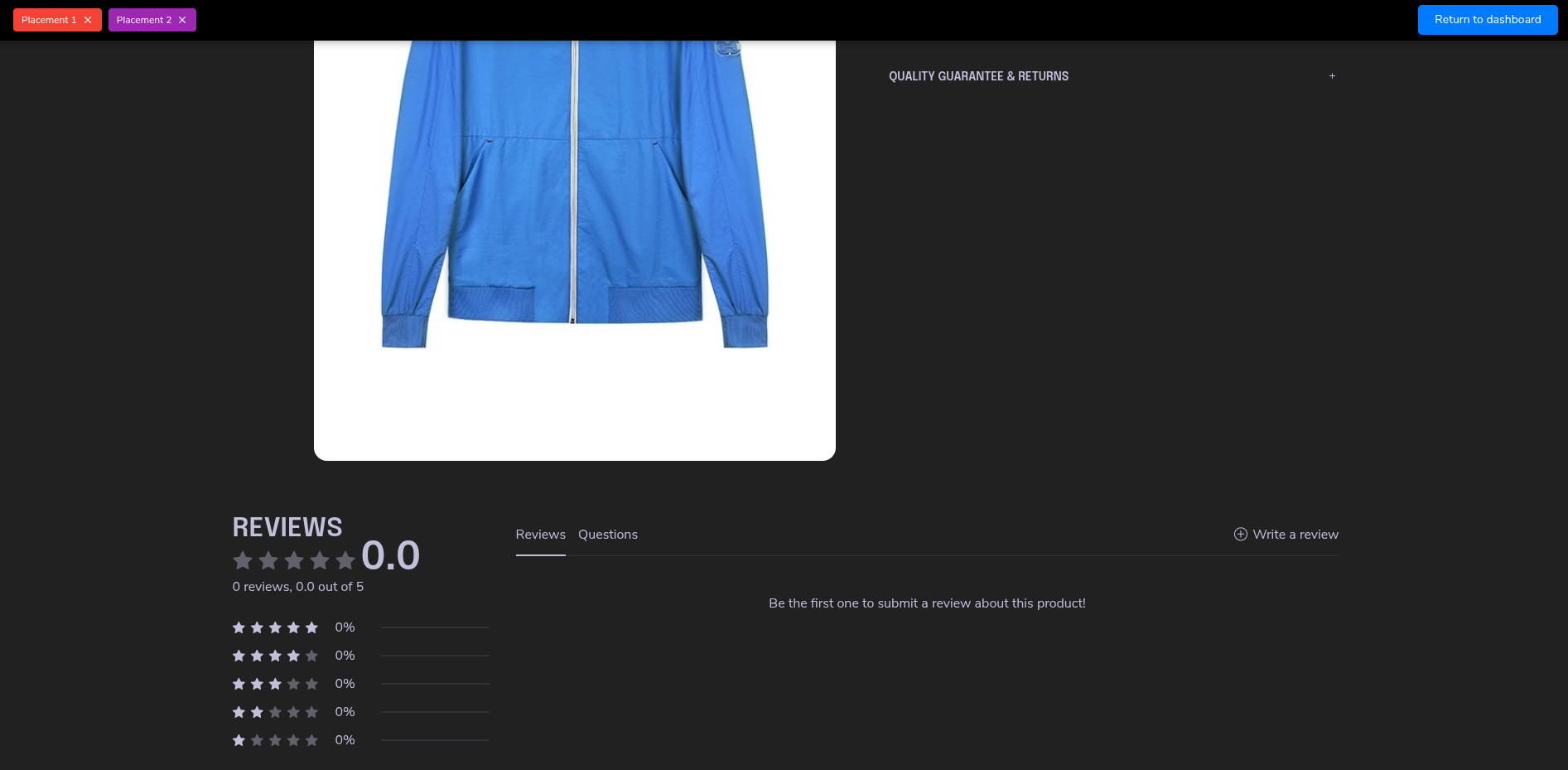
Once you’ve added a placement for each template, your widget will show up consistently across your entire catalog — no matter which product page a customer lands on.
Final Thoughts
EchoBrain makes widget placement easy and intuitive, with no need to manually enter CSS selectors. Whether you want to show reviews under product descriptions, above the footer, or right after the product title — it’s just a click away.
Set up your review widget placement today and start driving more conversions!