Product Groups: Organize Your Catalog for Review Requests
If you manage a large catalog, toggling review request settings one product at a time gets old fast. EchoBrain’s Product Groups let you bundle related products together so you can manage them as a single unit.
This feature is exclusively available to users in the PRO plan.
Step 1: Open Product Management
- Log in to your EchoBrain dashboard.
- In the left-side menu, under Reviews, click Review Settings.
- Click on the Product Management tab.
Step 2: Create a Product Group
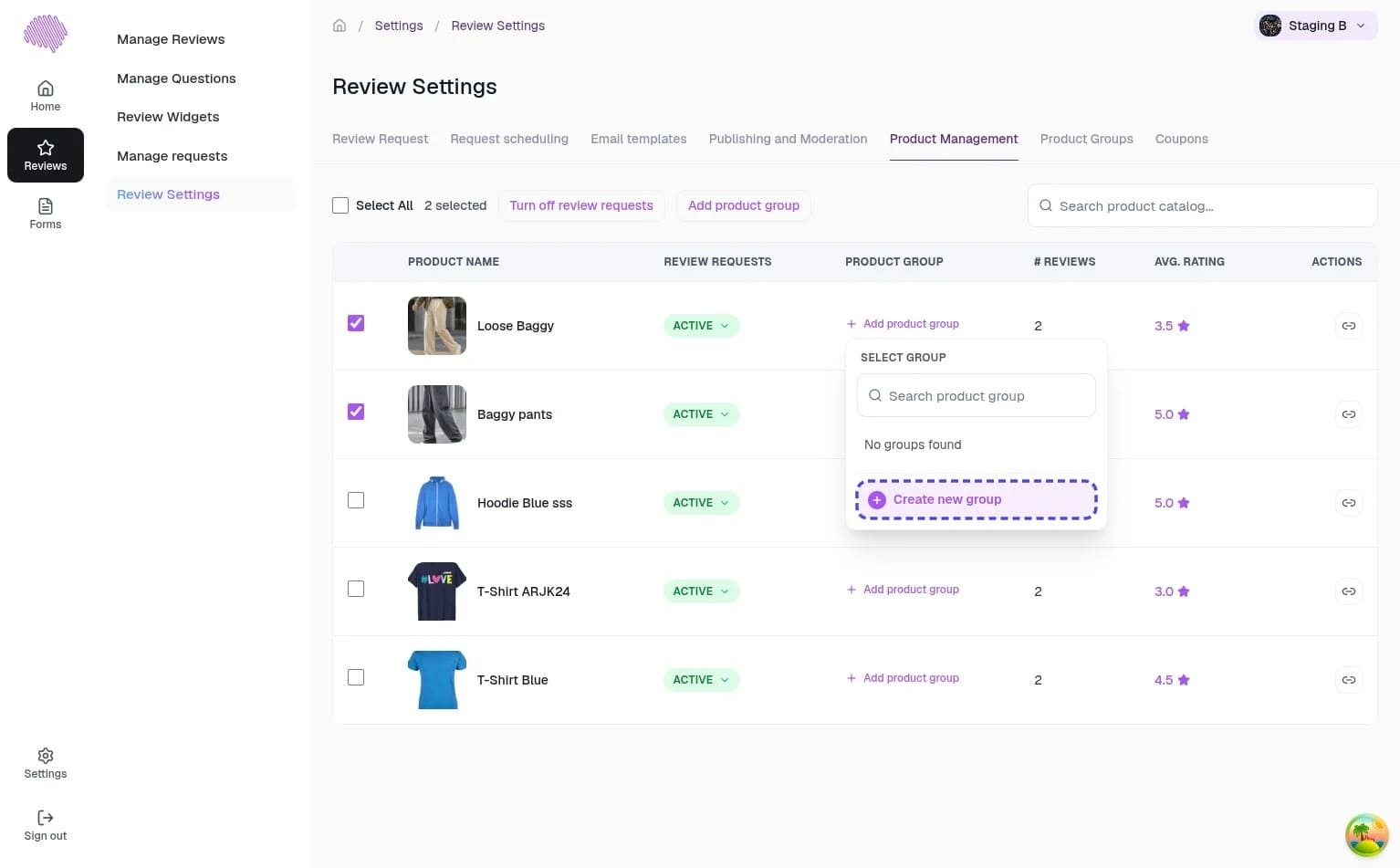
- Select one or more products using the checkboxes, then click “Add product group” — or click the same link directly on a single product’s row.
- In the “Select group” dropdown that appears, click “Create new group”.
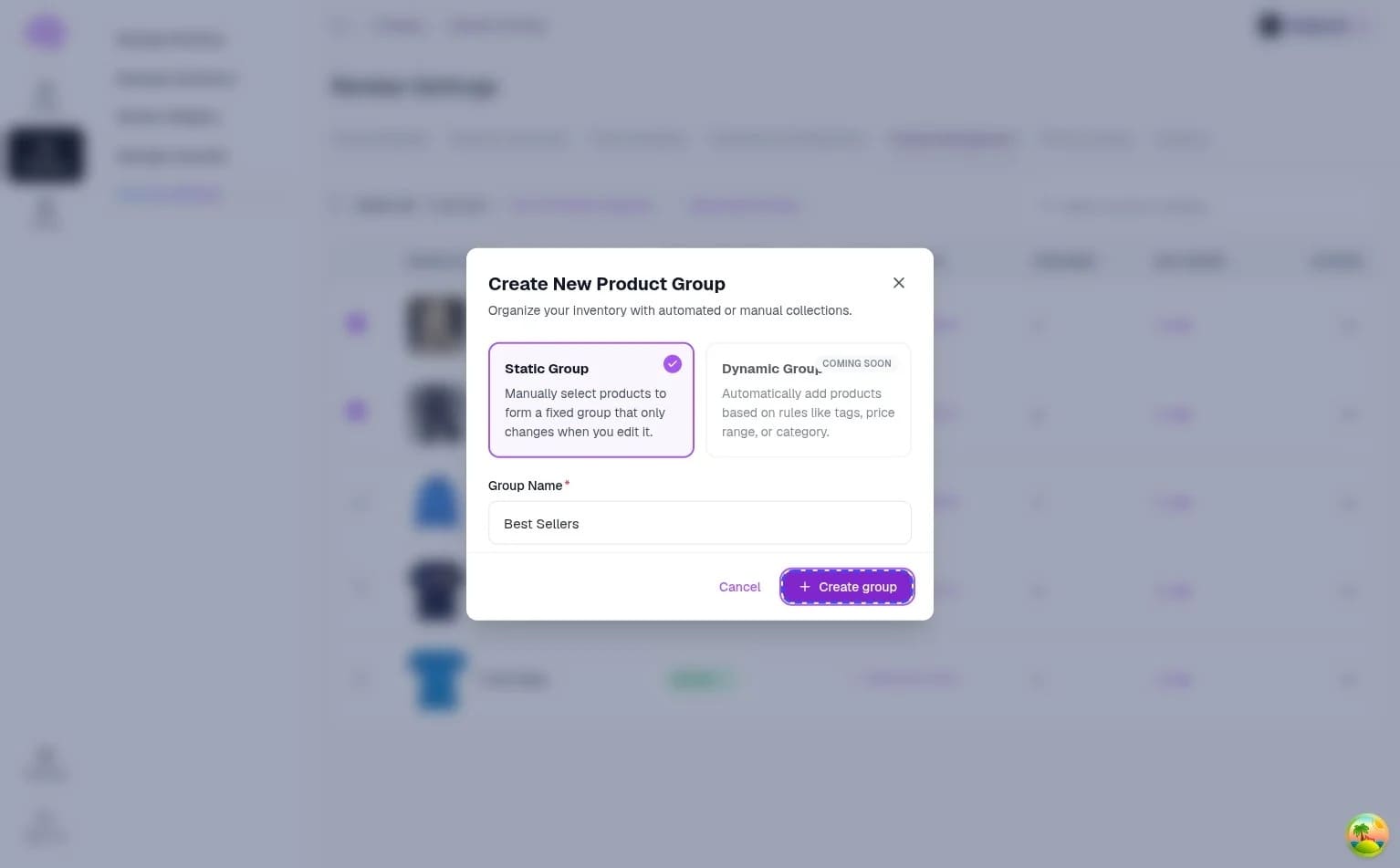
- In the “Create New Product Group” modal, choose a group type:
- Static Group: manually select products to form a fixed group that only changes when you edit it.
- Dynamic Group: automatically adds products based on rules like tags, price range, or category. This type is marked Coming Soon and isn’t available yet.
- Give your group a Group Name (e.g. “Best Sellers”).
- Click “Create group”.
Step 3: Manage Products in a Group
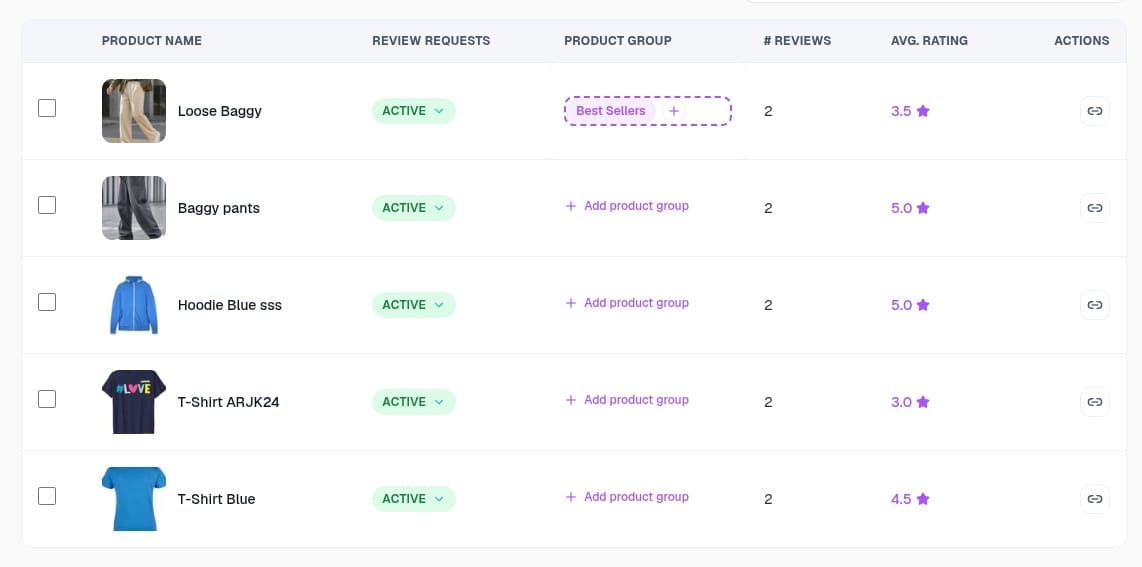
Once created, your group shows up under the Product Group column for any product assigned to it, and as its own entry in the Product Groups tab. From either place you can add more products to the group or remove ones that no longer belong.
Conclusion
Product Groups save you from managing review request settings product by product — group your catalog once, and apply changes to the whole group at a time. Dynamic Groups (auto-populated by rules like tags or price) are coming soon, so keep an eye out for that as an even faster way to stay organized.
Have questions? Reach out to support.
Ready to organize your catalog? Log in to EchoBrain today and create your first product group.