Customization: Crafting Your Unique Brand Experience
Let’s chat about how you can make EchoBrain reviews adopt your brand’s essence with some simple tweaks. Let’s get started!
Making EchoBrain Look Like Your Shop
When you first hop into EchoBrain’s dashboard, it already knows your shop’s style. It takes a peek at your shop and matches things up automatically — no setup needed on your end.
Click on the Settings icon at the bottom of the left-hand sidebar, then go to Branding.
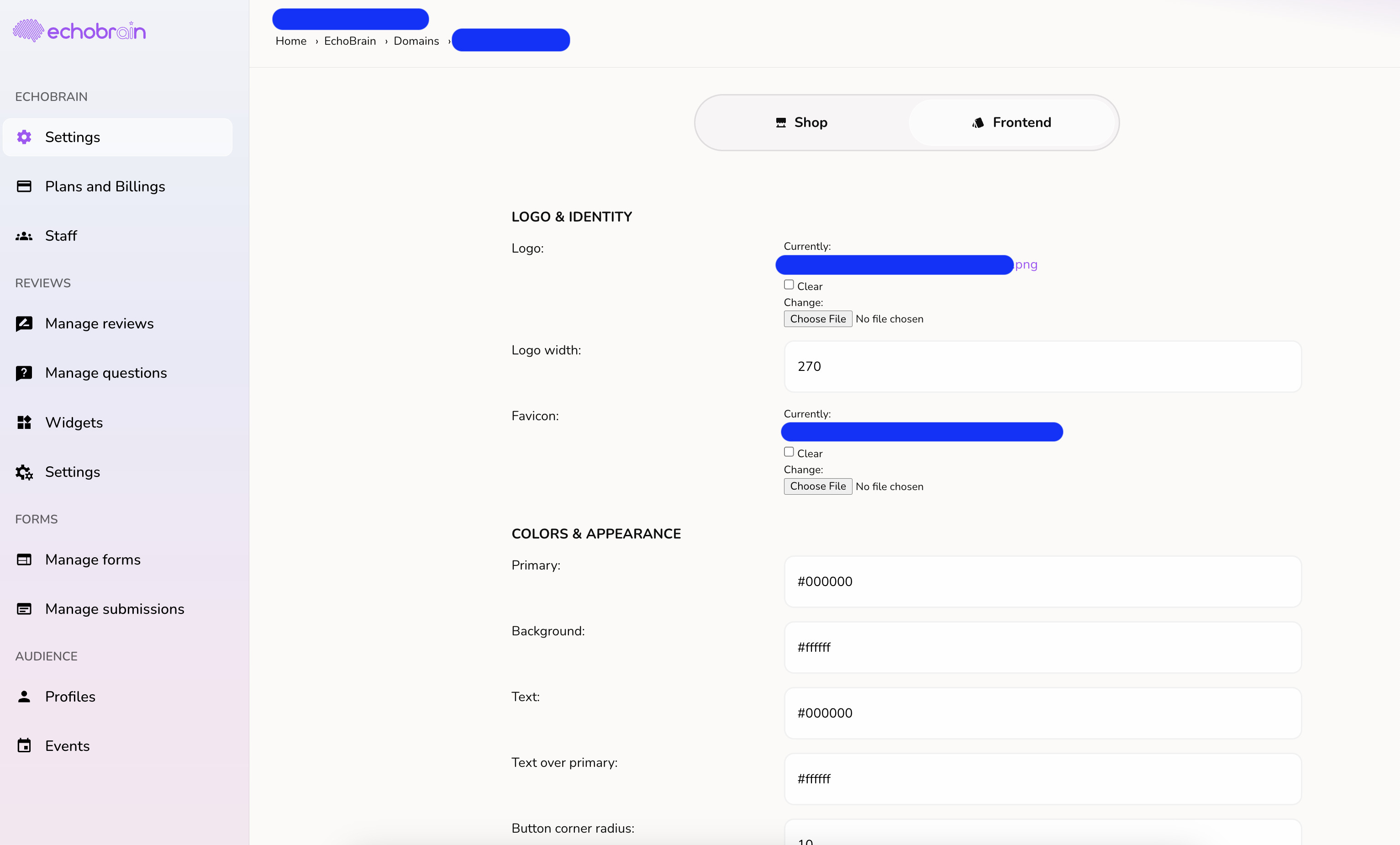
Here you’ll find your Store identity: your logo and four colors (Primary, Background, “On background”, and “On primary”). These are synced straight from your published Fourthwall theme and shown read-only — if you want to change any of them, update your theme in Fourthwall and hit Sync now in EchoBrain (there’s a short 5-minute cooldown between syncs). The one thing you can override here is a Custom logo, which takes priority over the synced one, but only in your transactional emails.
Want different colors just for how reviews look on your site? That’s a separate setting — see “Widget Wonders” below.
Where Do You Want Your Reviews?
Your reviews are like little stars – let’s put them center stage. EchoBrain makes it easy for you to display your reviews wherever you want on your shop. Please check this article to learn more.
Widget Wonders
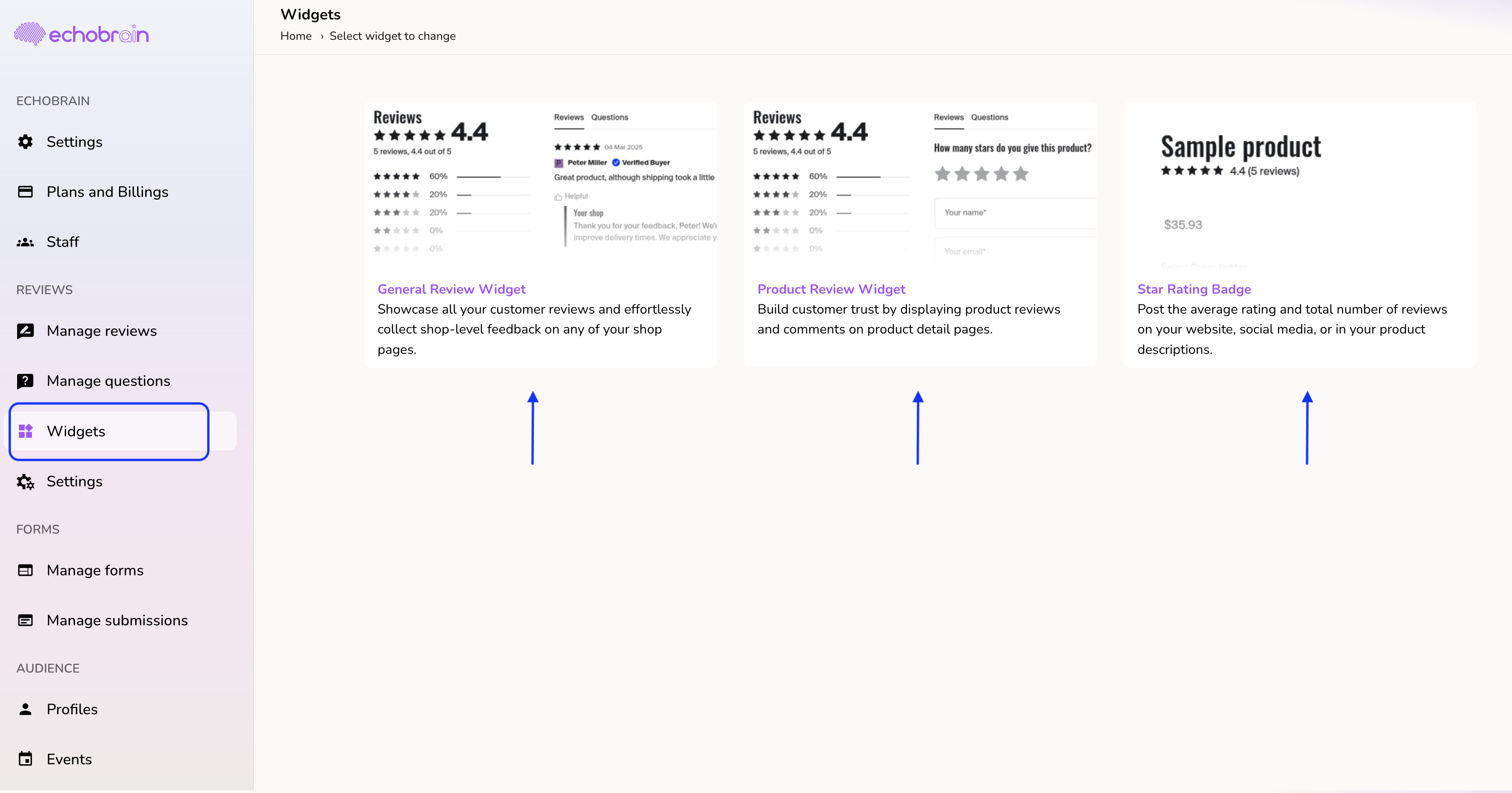
Widgets are like little robots that show off your reviews. You can tell them how many reviews to show or how many customer photos to display, and — independently from your synced brand identity — set the star color they use.
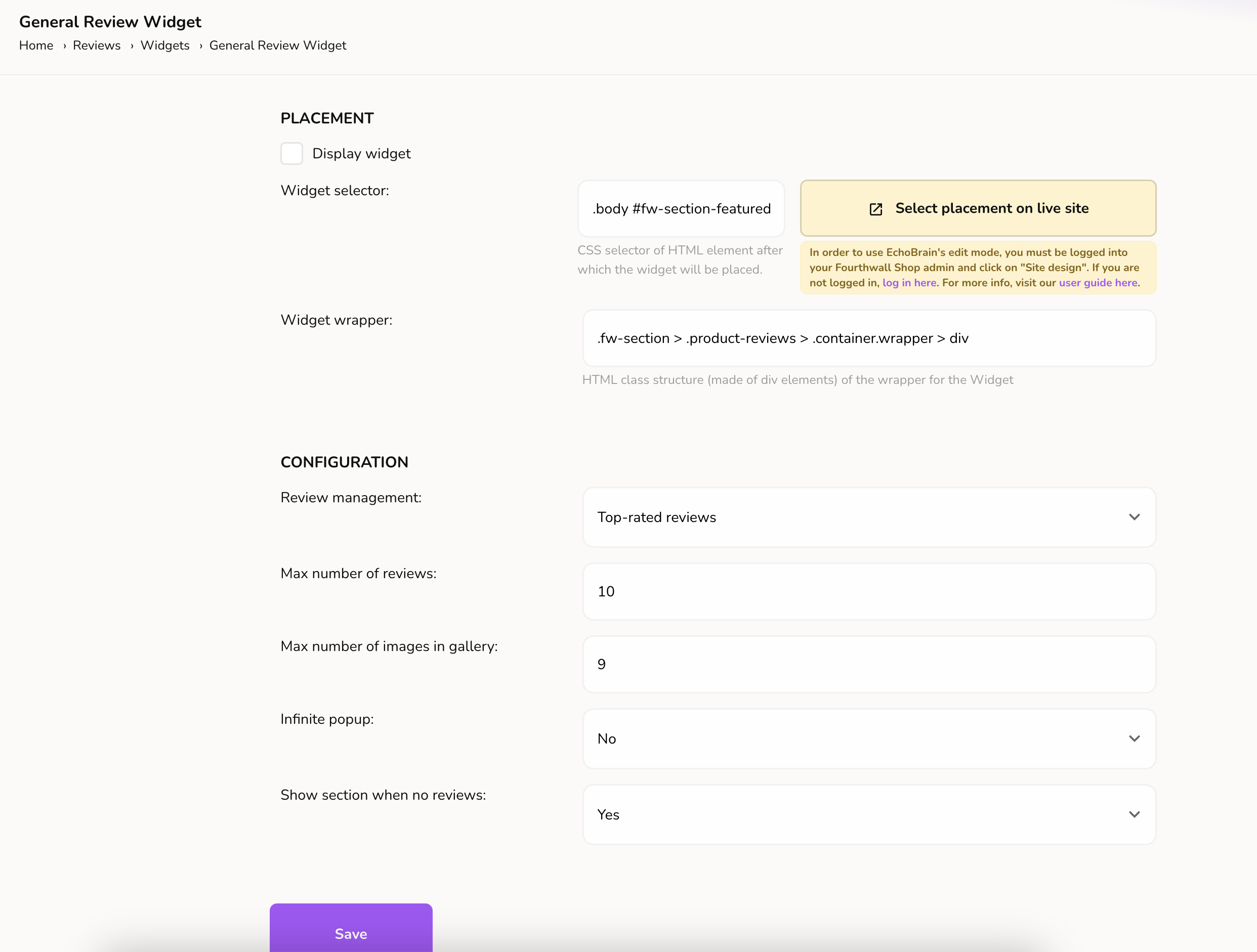
Go to Reviews → Review Widgets, and click Customize on the widget you want to adjust. Inside, you’ll find sections for Layout, Display conditions (max reviews, media gallery), Review content, Colors & Style (the widget’s star color), and Advanced — a custom CSS field for styling anything else about the widget.
The Perfect Thank You Email: The Review Request email
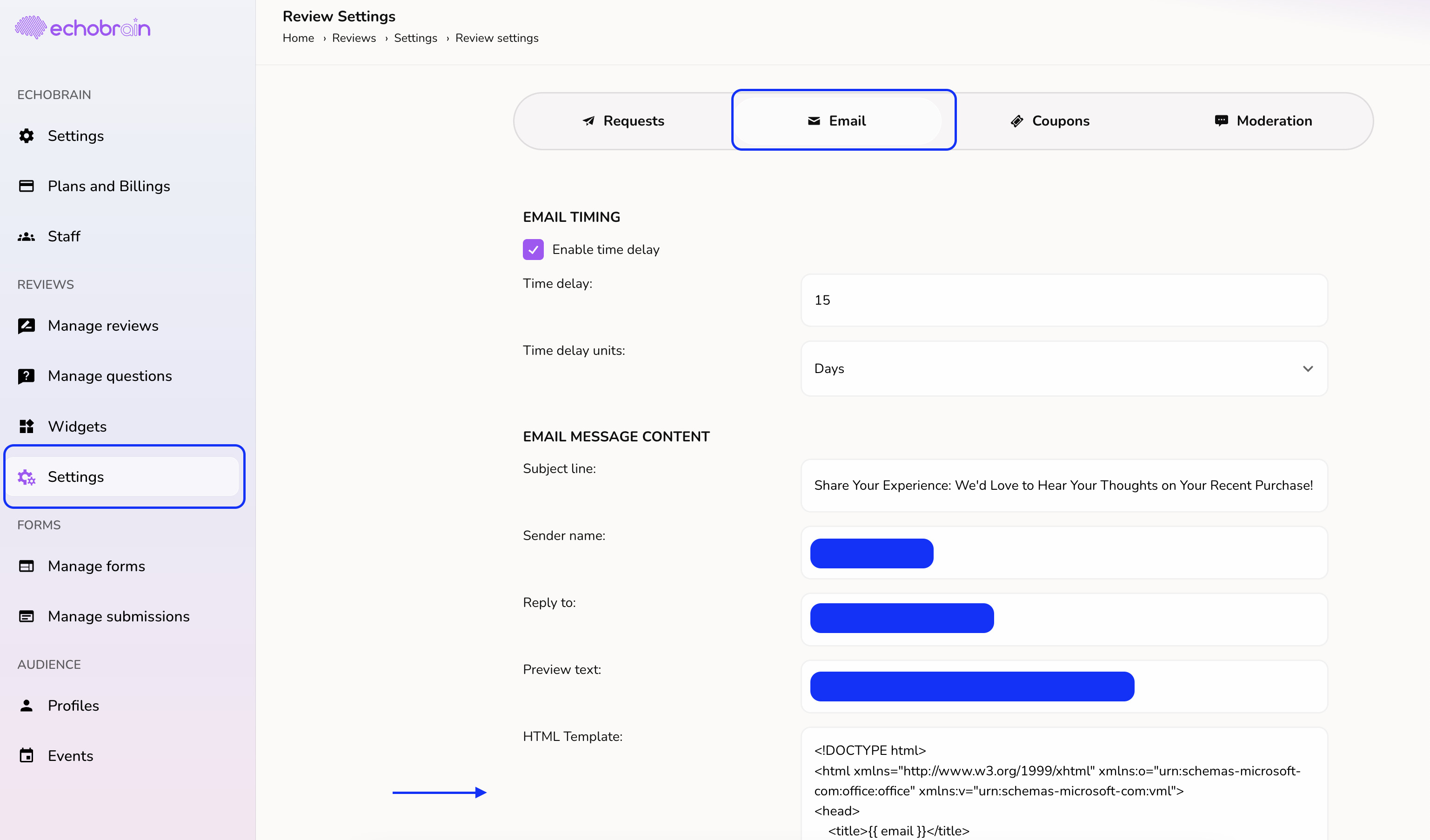
When customers buy from you, EchoBrain sends a nice email asking for their thoughts. You can make that email feel like your own, with your personal touch.
On your dashboard left-hand sidebar, click on “Review Settings” under “Reviews”. Then, click on the “Email templates” tab. Here you can edit the Subject line, Sender name, Reply to address, and Preview text. The email body itself is a polished, ready-made template you can preview but not rewrite line-by-line.
Wrap Up
There you have it – EchoBrain is not just smart; it’s also stylish and flexible. It’s all about making it yours, so your customers feel like they’re walking into your digital shop, greeted by your signature style and warmth. Set up your EchoBrain just right, and watch those reviews roll in!