Review Requests: Collecting Reviews from Your Customers
Review Requests allow you to invite your customers to leave a review about their purchase in a simple and automated way.
This section explains how Requests work, what each column means, and how to import previous orders into EchoBrain.
1. What Are Review Requests?
A Review Request represents a single email invitation sent to a customer asking them to leave a review for an order.
Each request is created automatically or manually and is responsible for:
- Sending the review email
- Linking the customer to the correct review form
- Tracking the delivery status of the request
Each row in the Requests table represents one review invitation.
2. Understanding the Requests Table
Below is an explanation of each column visible in the Requests section. You can also filter the table by Status or Date, and use “Select All” to select every request currently listed.

Order
The order identifier tied to this request (e.g. DT52IG).
This helps you quickly trace a request back to the specific order that generated it.
Order Date
The date the original order was placed.
This helps you understand:
- How recent the purchase was
- When the customer experience took place
Customer
The customer’s email address where the review invitation will be sent.
This is the email collected from the order data or provided manually.
Status
Indicates the current state of the review request:
- Scheduled → The email is queued and will be sent automatically
- Sent → The email was successfully delivered
- Failed → The email could not be delivered
- Skipped → The request will not be scheduled and no email will be sent
- Imported → The order was imported but has not yet been processed
Most requests appear as Scheduled until the email is sent.
Understanding the Skipped status
A request is marked as Skipped when EchoBrain determines it cannot or should not send an email for that order. This can happen in these situations:
-
No active timing rule — Your store has timing rules, but all of them are turned off. EchoBrain treats this as a decision to pause review requests, so new orders are skipped until you turn a rule back on.
-
No marketing consent — The Marketing consent toggle is on and the customer didn’t opt in to marketing communications.
-
Error while scheduling the email — An unexpected error occurred when EchoBrain tried to queue the email for delivery. In this case, the request is also marked as Skipped to prevent it from remaining in a stuck state.
-
Error while sending the email — The email provider rejected the email (for example, because of an invalid sender address), so retrying wouldn’t help.
An order from a country without its own timing rule is not skipped: it uses your GENERAL timing (default: 15 days), or a default of 20 days if there’s no GENERAL timing. The delay is always counted from the order date. See Collecting Reviews for details.
Skipped requests will not be retried automatically. If you believe a request was skipped by mistake, check that at least one timing rule is turned on under Reviews → Review Settings → Request scheduling.
3. Sending Review Requests Automatically
EchoBrain automatically creates review requests when:
- New orders are synced from your store
- Orders are imported into the system
Each eligible order generates its own review request, ensuring:
- One request per order
- Accurate review attribution
- No manual follow-up required
4. Importing Previous Orders (Pull Past Requests)
If you want to collect reviews for older purchases, you can use Pull past requests.
How It Works
From the Requests list, click Pull past requests in the top-right corner:
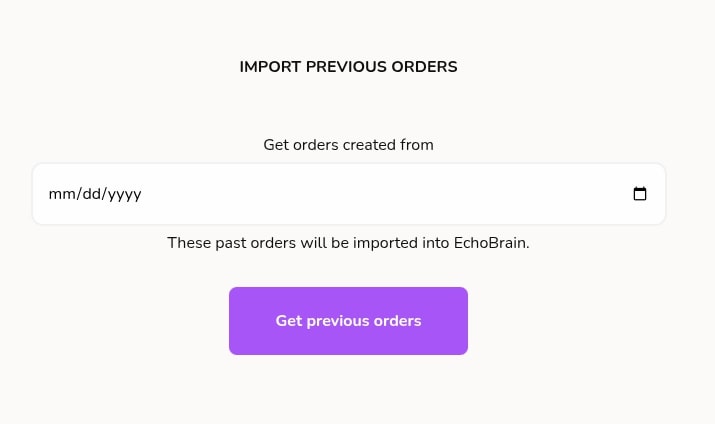
A “Pull past requests” modal opens, explaining it will “Import past orders from Fourthwall starting from the selected date.” From here:
- Pick a Start date
- Click “Import orders”
- EchoBrain fetches all orders created from that date forward and imports them
- A review request is created for each imported order
Once imported, these orders behave the same as new ones:
- Review requests are generated
- Emails are scheduled automatically
- Customers receive review invitations
You can also reach this same import from Reviews → Review Settings → Review Request tab, under “Manual requests and past orders” — click Import Past Orders there for the same result.
Why Use Pull Past Requests?
This is useful when:
- You are setting up EchoBrain for the first time
- You want to collect reviews from previous customers
- You connected a store with existing order history
It allows you to unlock value from historical orders without manual effort.
5. What the Customer Experiences
From the customer’s perspective, the flow is simple:
- They receive an email asking for a review
- They click the Review Form URL
- They submit a rating and written feedback
- The review appears in your EchoBrain dashboard and widgets (once published)
The review form is mobile-friendly and easy to complete.
6. Why Review Requests Matter
Review Requests help you:
- Increase review collection rates
- Gather verified feedback from real customers — reviews submitted through the order link in a request earn the “Verified Buyer” badge automatically
- Automate follow-ups without manual work
- Respect marketing preferences and compliance
- Build trust and social proof for your store
Final Thoughts
Review Requests are the foundation of collecting high-quality customer feedback in EchoBrain.
By combining automatic requests, manual controls, and past order imports, you can turn every purchase — past and future — into valuable customer reviews with minimal effort.
Note: the Requests screen is reachable from the left-side menu under Reviews → Manage requests, and its page title reads “Manage requests.”