Google Product Ratings: Show Your Star Ratings on Google Shopping & Search
Star ratings next to your products in Google Shopping ads and Search results are one of the simplest trust signals you can add — shoppers see the social proof before they even click through to your site. EchoBrain can now generate a Google Reviews feed from your published reviews, ready to submit to your own Google Merchant Center account.
This feature is exclusively available to users in the PRO plan.
What Are Google Product Ratings?
Google actually runs two different review-related programs, and it’s easy to mix them up:
- Product Ratings — adds the star rating and review count you see under products in Shopping ads and free listings, using a feed of existing reviews. This is what EchoBrain’s feed powers.
- Google Customer Reviews — a separate opt-in survey that pops up after checkout, plus a seller badge snippet on your confirmation page. EchoBrain’s feed has nothing to do with this program.
If your goal is to get stars showing on your product listings, Product Ratings — and the feed described below — is the right path.
Step 1: Find Your Google Reviews Feed URL in EchoBrain
- Log in to your EchoBrain admin. In the left-side menu, under Reviews, click Review Settings.
- Review Settings opens on the Review Request tab — that’s where the Google Reviews Feed now lives.
- Find the Google Reviews Feed URL field and click Copy URL.
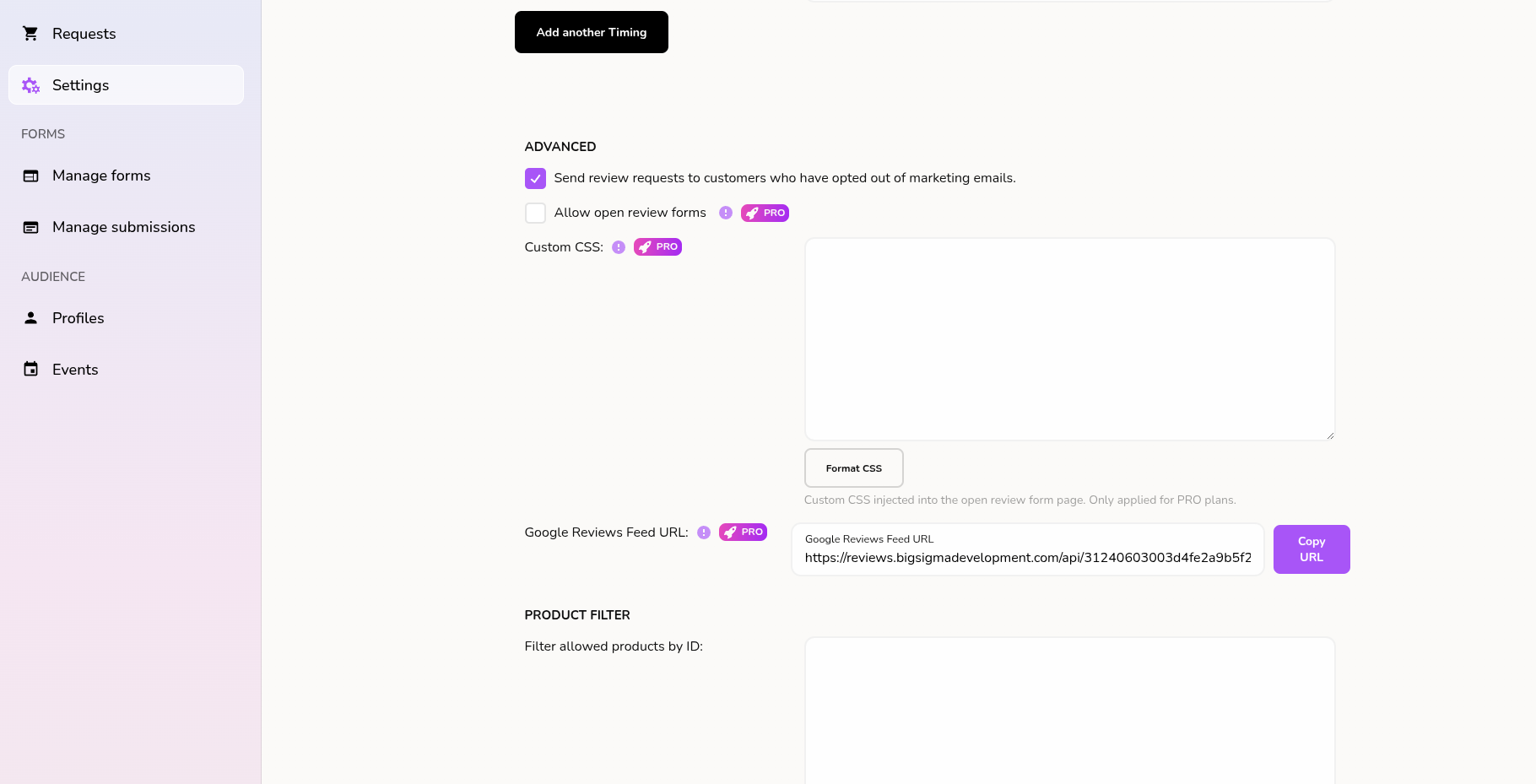
This field only appears if your domain is on the PRO plan. Keep the URL handy — you’ll paste it into Merchant Center in Step 4.
Step 2: Make Sure You’re Ready to Apply
Before you head to Merchant Center, Google has a couple of requirements that are worth checking first, since they’re outside of EchoBrain’s control:
- Your feed needs at least 50 published reviews to be eligible for the program.
- You’ll need to apply from a Merchant Center account tied to a real, active business — Google can reject or suspend accounts that look like a test or placeholder store.
- Google doesn’t publish a guaranteed response time for individual merchant applications. Approval can take anywhere from a few days to several weeks, so it’s best to apply early and keep selling in the meantime.
Step 3: Submit the Product Ratings Interest Form
- In Google Merchant Center, go to Add-ons → the Discover tab → the “Product ratings” card.
- Click Submit Product Ratings interest form.
- When asked if you work with an approved third-party review aggregator, answer No — EchoBrain’s feed is self-hosted and doesn’t go through an aggregator. Fill in the rest with your real business details.
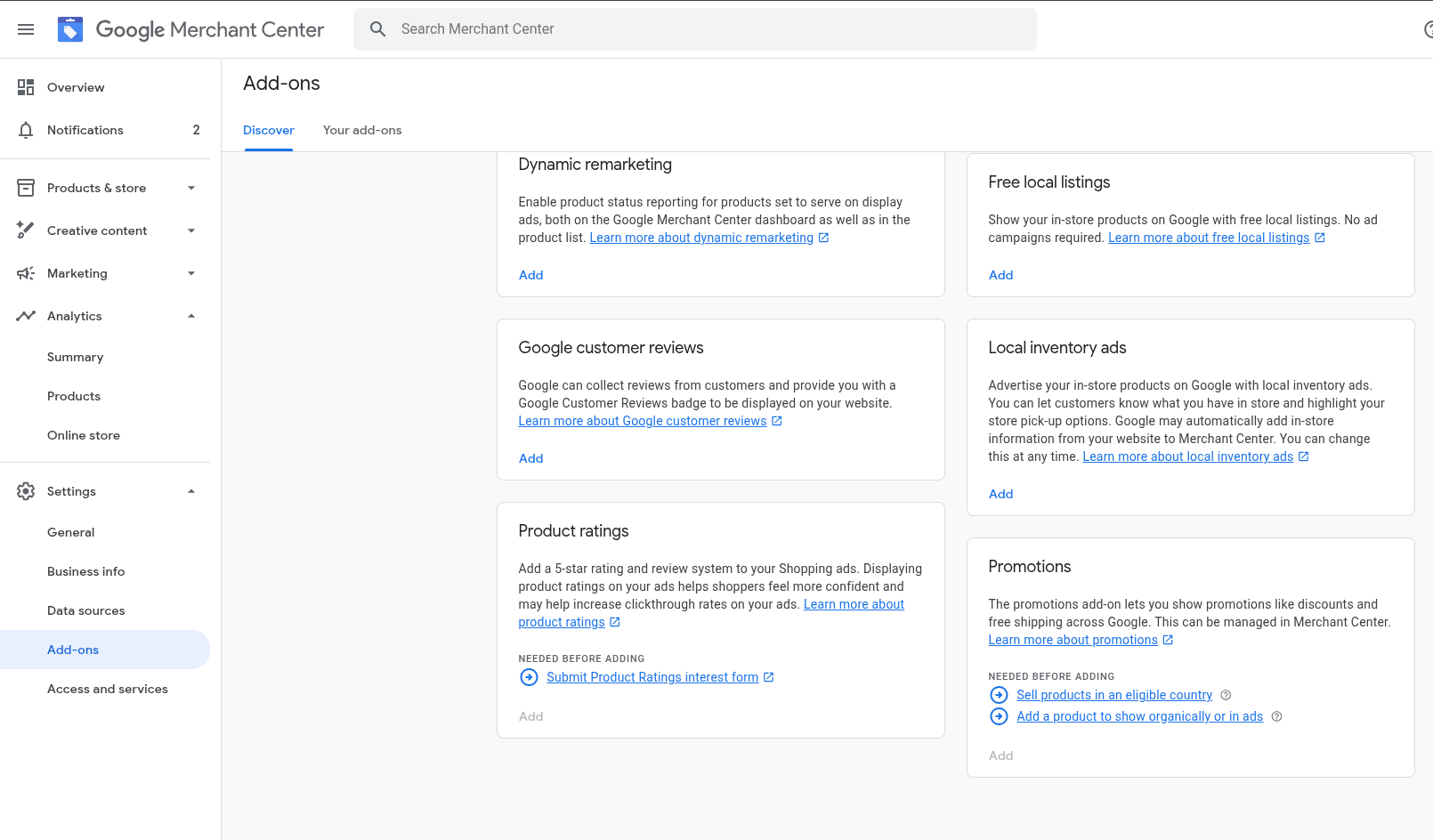
Read more in Google’s own Product Ratings basics and interest form documentation.
Step 4: Add Your Feed Once You’re Approved
Once Google approves your application, the “Add” button on the Product ratings card unlocks and takes you into the data source setup flow.
- Choose Scheduled fetch as the data source type.
- Paste in your feed URL from Step 1 (
https://.../api/<your-uuid>/reviews/feed.xml). - Set a fetch frequency and click Continue.
Your new data source will show up as “inactive” right after you add it — that’s expected, not an error. It activates once Google runs its first fetch. For the full walkthrough, see Google’s data source upload guide.
What to Expect After That
A few honest expectations, so nothing feels like it’s stuck:
- EchoBrain refreshes your feed automatically every 6 hours. A review you just published can take up to 6 hours to show up in the feed itself.
- Once Google fetches your feed, Merchant Center’s Product Reviews Diagnostics panel classifies each review as Disapproved (failed processing), Needs Review (processed fine but missing optional identifiers), or Ready to Serve. See the diagnostics guide for details on each state.
- Even after your feed is approved and loading cleanly, Google notes it can take 2–4 additional weeks for stars to actually appear on your Shopping ads and Search listings.
You don’t need to re-submit or re-upload anything during this waiting period — EchoBrain keeps your feed current in the background automatically.
Conclusion
Getting your star ratings onto Google takes patience more than effort: find your feed URL in EchoBrain, apply through Merchant Center, and add the feed once you’re approved. From there, EchoBrain handles keeping it fresh — no ongoing maintenance on your end. For more on building up the reviews that power this feed, check out our guide on managing your reviews.
Have questions? Reach out to support.
Ready to get your star ratings in front of more shoppers? Log in to EchoBrain today and grab your Google Reviews feed URL.